 Skip to main content
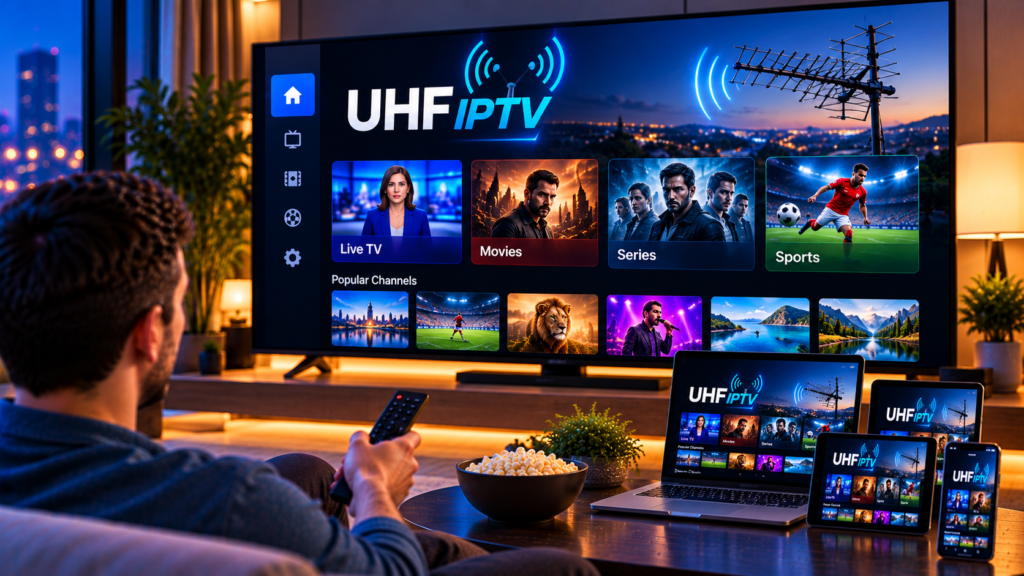
If you own an iPhone, iPad, or Apple TV, you have probably seen UHF recommended as an IPTV player. The app looks polished, but beginners often get stuck on the same questions. Does it include channels? How do you add a playlist? Which settings actually matter?
This guide answers all of that in plain language, from installation to troubleshooting.
What Is UHF IPTV?
UHF is an IPTV player app for Apple devices. It plays live TV, movies, and series from playlists that you add yourself. It supports M3U8 and Xtream playlists, plus media servers such as Plex, Jellyfin, and Emby.
UHF does not provide channels or content. It is a player only, so you need a separate IPTV subscription to supply the playlist.
Is UHF the Same as a UHF Antenna?
No. UHF is also a radio frequency band used by traditional TV antennas, but the UHF app has nothing to do with aerials. It streams over your internet connection.
Which Devices Does UHF Support?
According to the official website and the App Store, UHF is built for:
- iPhone
- iPad
- Apple TV
- Mac (the iPad version runs on Apple silicon Macs)
There is no Android version listed, which matters if you use a Fire Stick or an Android box. More on that below.
Key Features of UHF
The current listing highlights a long feature list. These are the ones most viewers actually use:
- Global search across all your playlists at once
- A touch-friendly TV guide (EPG) that is quick to scroll
- Catch-up and timeshift for supported channels
- AirPlay and Chromecast casting to the big screen
- Picture-in-picture, including multiple players at once
- Favorites, renaming, and reordering for tidy playlists
- PIN-protected categories for parental control
- 4K HDR, Dolby Vision, and Dolby Atmos support when your content and hardware allow it
- A built-in VPN client that supports WireGuard and OpenVPN
- UHF Server, a free companion app for scheduling recordings from a Mac, Windows, or Linux computer
UHF Free vs UHF Pro
The core app is free to use. An optional Pro plan adds multi-device sync, an ad-free and watermark-free experience, and unlimited TV guide navigation with alerts.
On the Swedish App Store, the in-app purchases were listed at 19 kr per month, 199 kr per year, and 399 kr for a lifetime option. Prices can change, so check the listing before you buy.
Remember that these fees only cover the app. Your IPTV subscription is a separate cost.
How to Install and Set Up UHF Step by Step
Step 1: Check Your Device Requirements
The App Store lists iOS 16.0 or later, iPadOS 16.0 or later, tvOS 17.0 or later, and macOS 13.0 or later on a Mac with an M1 chip or newer. Older devices will need another player.
Step 2: Install the App
Open the App Store and search for “UHF – Love your IPTV”. Install it on each device where you want to watch. On Apple TV, use the Apple TV App Store.
Step 3: Get Your Playlist Details
Ask your provider for an M3U8 link or Xtream login details, which are a server address, a username, and a password. Save them in a note so you can paste them without retyping.
Step 4: Add Your Playlist
Open UHF and choose the option to add a playlist. Select the type, paste your details, and save.
Step 5: Let the Content Sync
The first sync can take a minute, especially with large playlists. Wait until your channels, movies, and series appear before changing any settings.
Step 6: Organize Your Library
Mark favorites, hide groups you never use, and lock any categories with a PIN if children use the device.
Tip for Apple TV: typing long links with a remote is painful. Pro users can manage playlists from a web console, which is much easier than typing on a TV.

M3U8 or Xtream: Which Is Better?
An M3U8 playlist is a single link containing your channels and categories. It is simple, but long links are easy to mistype.
Xtream uses a server address, username, and password. It usually gives cleaner categories and a more dependable program guide.
If your provider offers both, try Xtream first.
Settings That Improve Streaming
Recent release notes mention several options worth knowing:
- Buffering period: setting it to 0 seconds enables instant loading, but it needs a strong connection and fast servers. If playback stutters, return it to at least 1 second.
- Channel zapping delay: if switching channels causes connection errors, a longer delay between closing one stream and opening the next can help. You will find it under the video player settings.
- Live stream format: you can choose TS or M3U8 as the preferred format for live playback.
- Catch-up offset: you can adjust it per channel if the timing feels off.
Change one setting at a time so you know what made the difference.
Choosing an IPTV Provider for UHF
A great player cannot rescue a weak playlist. Your provider decides your channel list, stream stability, and program guide accuracy.
Look for steady performance during live sports, HD, FHD, and 4K options, Swedish and Nordic channels, and quick support. The Nordic market has many choices, including Nordic IPTV King, so compare channel lists and device support instead of choosing on price alone.
Also, use legal content. UHF states that it is designed for playlists made from legally sourced material.
Common UHF Problems and Fixes
The Playlist Will Not Load
Check for extra spaces in the link or username. Confirm that your subscription is active, then remove and re-add the playlist.
The TV Guide Is Empty
Some playlists need a separate EPG source. Ask your provider whether one is included.
Favorites Disappeared
The developer says this usually happens when a playlist changes category or channel names, because saved favorites can no longer match. Re-adding them is the fix.
Casting Drops Out
A few Swedish App Store reviews mention Chromecast problems. Test casting during the free period, try AirPlay as an alternative, and keep your phone and TV on the same network.
Buffering and Freezing
Aim for roughly 8 to 10 Mbps for HD and about 25 Mbps for 4K. Use a stronger Wi-Fi band or a cable when possible. If the problem remains, our IPTV FAQ covers many common questions.
What If You Do Not Use Apple Devices?
UHF is an Apple-focused app, so Android phones, Fire Sticks, and Android TV boxes need another player. A popular choice on Android devices is TiviMate, and our TiviMate setup instructions explain how to get it running.
Final Verdict on UHF IPTV
UHF is one of the more complete IPTV players for iPhone, iPad, and Apple TV. The free version covers the essentials, the interface is clean, and the extras such as casting, VPN, and recording make it flexible.
Its main limits are that it only runs on Apple devices and includes no content. With a reliable playlist and a stable connection, it is easy to recommend.
Frequently Asked Questions
What is UHF IPTV used for?
It plays live TV, movies, and series from your own M3U8, Xtream, Plex, Jellyfin, or Emby source on Apple devices.
Does UHF include channels?
No. You must add a playlist from an IPTV subscription.
Is UHF free?
The core app is free, and an optional Pro plan adds sync and extra guide features.
Does UHF work on Android?
No Android version is listed. Android users should choose a different player.
How do I add a playlist to UHF?
Open the app, choose the add-playlist option, select M3U8 or Xtream, enter your details, and let it sync.
Final Thoughts
A good player is only half of the experience, because the service behind it matters just as much. If you want stable HD, FHD, and 4K streaming with Swedish and international channels, explore the packages at Monster IPTV. Setup is simple, and it works well with popular IPTV apps like UHF across your devices.
