 Skip to main content
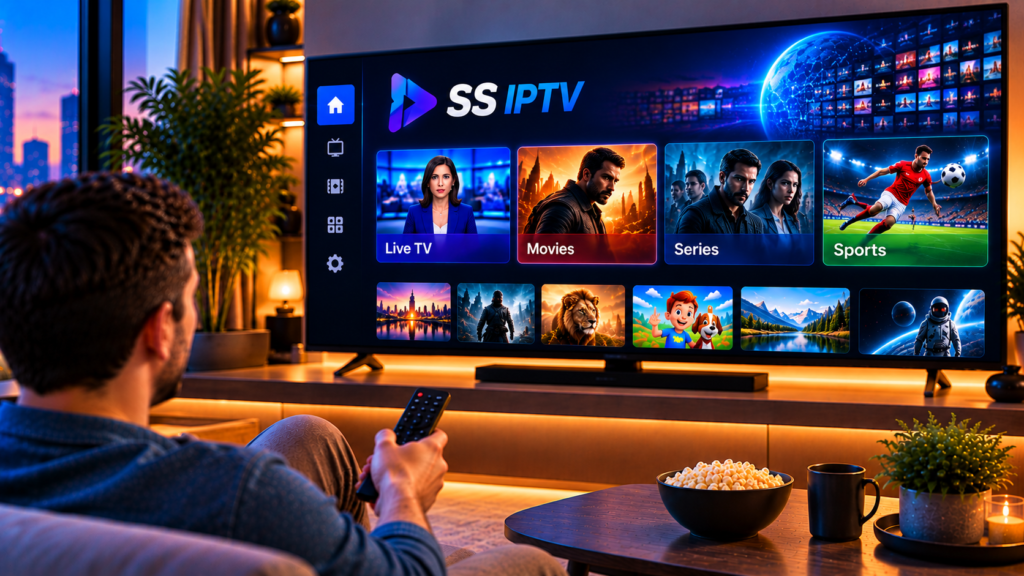
Setting up SS IPTV for the first time can feel confusing. You install the app, open it, and see an empty screen with no channels. That is normal, because SS IPTV is a player. It does not ship with any content of its own.
This guide explains what SS IPTV is, how to install it on your device, and how to upload your playlist correctly. It also covers the most common problems and how to fix them.
What Is SS IPTV?
SS IPTV, also known as Simple Smart IPTV, is a media player app that plays IPTV playlists. You give it a playlist from your provider, usually an M3U link, and it displays your channels in a clean, easy-to-browse list.
The app is popular on Smart TVs, especially Samsung and LG models. Mobile versions are also available for iPhone, iPad, and Android devices.
What SS IPTV Does Not Do
SS IPTV does not include channels, movies, or series. Without a playlist from an IPTV provider, the app stays empty. Think of it like a DVD player with no disc.
What You Need Before You Start
A few minutes of preparation will save you a lot of frustration. Before installing anything, make sure you have:
- A compatible device, such as a Samsung or LG Smart TV, a smartphone, or a tablet
- A stable internet connection, ideally 15 Mbps or more for HD and 25 Mbps or more for 4K
- A playlist URL or M3U file from your IPTV provider
- A phone or computer to type the playlist link, since typing on a TV remote is slow
How to Install SS IPTV on Your Device
The installation steps depend on the device you use. Here are the most common options.
Installing SS IPTV on Samsung Smart TV
- Press the Home button on your remote.
- Open the Apps section.
- Use the search icon and type “SS IPTV”.
- Select the app and choose Install.
- Open the app once the installation finishes.
Installing SS IPTV on LG Smart TV
- Open the LG Content Store from the home screen.
- Search for “SS IPTV”.
- Select the app and press Install.
- Launch it after the download completes.
Availability can vary by TV model, year, and region. If you cannot find the app, your TV may use an older or newer operating system. In that case, a different player may suit you better.
Installing SS IPTV on iPhone, iPad, and Android
On mobile, the process is simple. Open the App Store or Google Play, search for SS IPTV, and tap Install. Several versions exist, including lite versions, so check the app name and developer before you download.
Mobile apps usually let you paste a playlist link directly into the app. This is much easier than the TV method.
How to Upload a Playlist to SS IPTV
This is the step where most beginners get stuck. There are two main methods, and both are easy once you know how they work.
Method 1: Add the Playlist URL Inside the App
This method works best on mobile devices and on some TV versions.
- Open SS IPTV and go to Settings.
- Look for the Content or Playlists section.
- Choose the option to add an external or new playlist.
- Paste your M3U URL and give the playlist a name.
- Save the settings and return to the main screen.
Your channels should load within a few seconds. Large playlists can take a little longer, so give the app a moment.
Method 2: Use the Activation Code on a Computer
On many Smart TVs, typing a long URL with a remote is painful. The code method avoids this.
- Open SS IPTV on your TV and go to Settings.
- Select the option that shows a connection code.
- Open the SS IPTV website on your phone or computer.
- Enter the code from your TV screen.
- Add your playlist link or upload your M3U file.
- Restart the app on your TV.
The playlist then syncs to your television automatically. Always type the code exactly as shown, because it is case sensitive on some versions.
Where to Find Your M3U Playlist Link
Your IPTV provider sends the playlist link after you subscribe, usually by email or through your account. The link normally contains a username, a password, and a server address.
Keep this link private. Anyone who has it can use your subscription. Choose a provider that offers clear setup instructions, reliable servers, and responsive support.
At Monster IPTV, step-by-step guides are available on the installation instructions page, so you can follow along for your specific device and avoid guesswork.
Tips for Better Streaming Quality
A correct setup is only half the story. Your streaming experience also depends on your network and your device.
Use a Wired Connection When Possible
Wi-Fi is convenient, but an Ethernet cable is more stable. If your TV is close to the router, a cable can reduce buffering, especially during live sports.
Keep Your App and TV Software Updated
Outdated firmware can cause crashes, black screens, and missing channels. Check for updates every few months.
Organize Your Channel List
Large playlists can feel overwhelming. Use the favorites option, or hide groups you never watch. If you want to see what a well-organized lineup looks like, you can browse the available channel categories before choosing a plan.
SS IPTV vs Other IPTV Player Apps
SS IPTV is not the only option. Some users prefer a different player because of its interface, its features, or its support for their device.
Popular alternatives include Smart IPTV, TiviMate, and IPTV Smarters. Each has strengths. SS IPTV is lightweight and easy to use on Samsung and LG TVs. TiviMate offers a more advanced guide layout on Android devices.
Some providers, such as Viking IPTV, also publish their own guides on compatible apps, which can be useful for comparing how different services approach setup and device support.
If you are using an Android box or Fire Stick, a different player may give you more features. Your device matters more than the brand of the app.
Common SS IPTV Problems and Fixes
Even a perfect setup can run into small issues. Here are the most frequent ones.
The App Shows No Channels
Check that your playlist link is correct and complete. A missing character or an extra space can stop everything from loading. Also confirm that your subscription is active.
Channels Keep Buffering
Test your internet speed first. If the speed is fine, restart your router and TV. If the problem continues, switch from Wi-Fi to a cable, or try a lower quality stream.
The Playlist Will Not Upload
Make sure you used the correct connection code, and restart the app after adding the playlist. If you used a file, confirm it is a valid M3U format.

Streams Are Blocked or Slow
Some internet providers throttle streaming traffic. A VPN can help in these cases. You can read more about using a VPN with IPTV to see whether it fits your situation.
Is SS IPTV Safe to Use?
The app itself is a standard media player. The safety of your experience depends on the playlist source. Only use playlists from providers you trust, and never share your login details publicly.
Also check the rules in your country about streaming content and subscriptions. Choose licensed or reputable services whenever possible.
Frequently Asked Questions About SS IPTV
What is SS IPTV used for?
SS IPTV is used to play IPTV playlists on Smart TVs and mobile devices. It organizes live channels, movies, and series from an M3U link supplied by your provider.
Is SS IPTV free?
The app is available for free on many platforms, although some versions may include ads or optional upgrades. The playlist and content are not included, so you still need a subscription from an IPTV provider.
How do I add a playlist to SS IPTV?
Open Settings, find the playlist section, and paste your M3U URL. On many TVs, you can instead use the connection code on the SS IPTV website to upload your playlist from a computer.
Why is my SS IPTV playlist empty?
The most common causes are an incorrect URL, an expired subscription, or a failed sync. Re-enter the link, restart the app, and confirm that your account is active.
Does SS IPTV work on 4K TVs?
Yes, the app can play 4K streams if your TV supports them and your internet speed is high enough. The stream quality itself depends on your provider.
Final Thoughts
SS IPTV is simple once you understand the process: install the app, get your playlist link, and upload it with either the in-app method or the activation code. Most problems come from small typing errors or unstable internet, and both are easy to fix.
If you want a reliable service to pair with your player, explore the plans, channel lineup, and setup support at Monster IPTV. With stable HD, FHD, and 4K streaming and guides for popular devices, you can be watching in minutes.
