 Skip to main content
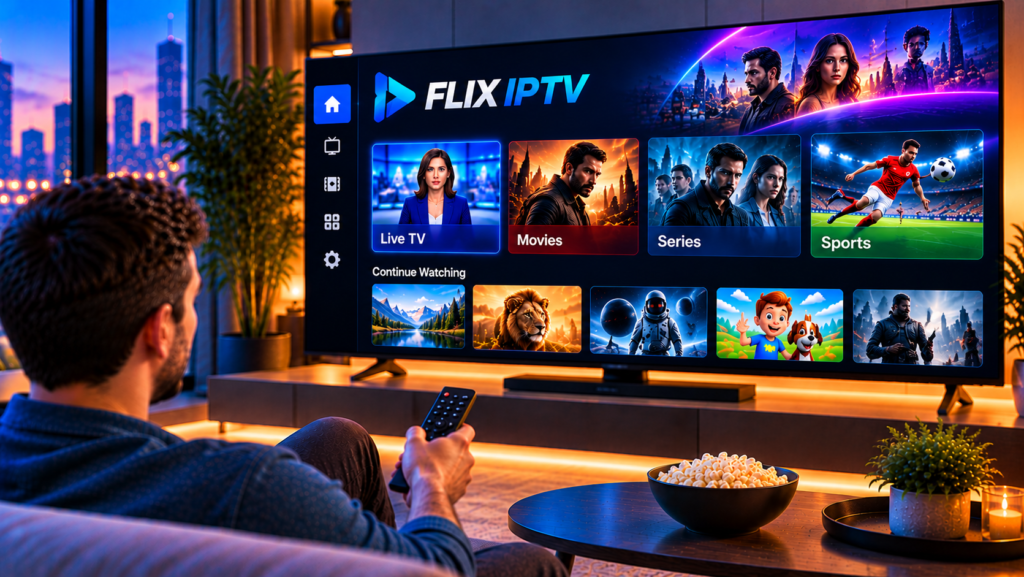
You download the app, open it, and see nothing but a login screen. That is how Flix IPTV works for almost everyone on day one. It is a player, so it needs your IPTV provider’s details before a single channel appears.
This guide shows you how to install Flix IPTV, activate it, and add your playlist correctly. It also explains why two different apps share the same name, which confuses many beginners.
What Is Flix IPTV?
Flix IPTV is a media player app for streaming live TV, movies, and series from an IPTV subscription you already have. It does not include any channels or on-demand content. Without a provider, the app stays empty.
Think of it as a TV remote and program guide in one. Your provider supplies the content, and Flix organizes it into a clean, easy-to-browse layout.
Two Apps, One Name: Which Flix Do You Have?
Search results for “Flix IPTV” show more than one app. Knowing which one you have saves a lot of time during setup.
Flix IPTV Media Player
This version is built for Apple devices. It connects to your provider through the Xtream API, which means you log in with a server address, username, and password instead of loading a file.
It also includes a TV guide, a movies and series library, catch-up TV where your provider supports it, and multi-account support. Login details are stored in iCloud Keychain. At the time of writing, the app listing requires iOS 26.0 or later.
Flix Pro Player
Flix Pro Player is a separate app with its own website. It is available for Android, Samsung, LG, Roku, and Apple devices. The website has dedicated areas for managing playlists and activating the app, so setup often happens partly on a computer or phone.
If the app on your screen matches the first description, follow the login method below. If it looks like the second, follow the activation and playlist upload steps.
What You Need Before You Start
A little preparation makes the whole process faster. Gather these items first:
- A compatible device, such as an iPhone, iPad, Android phone, Samsung TV, LG TV, or Roku
- An active IPTV subscription from your provider
- Your login details or playlist link, usually an Xtream login or an M3U URL
- A stable internet connection, ideally 15 Mbps or more for HD and 25 Mbps or more for 4K
- A phone or computer, because typing long details on a TV remote is slow
How to Install Flix IPTV
The steps are similar on every platform. You find the app in your device’s store and install it like any other app.
Install on iPhone and iPad
- Open the App Store.
- Search for “Flix IPTV Media Player”.
- Check the app name and developer, then tap Get.
- Open the app once the download finishes.
Install on Android Phones and Tablets
- Open Google Play.
- Search for “Flix Pro Player”.
- Tap Install.
- Launch the app after it downloads.
Install on Samsung, LG, and Roku TVs
- Open the app store on your TV, such as the Samsung Apps section, the LG Content Store, or the Roku Channel Store.
- Search for “Flix Pro Player”.
- Select the app and choose Install or Add Channel.
- Open it from your home screen.
App availability can differ by TV model, year, and region. If you cannot find the app, check your TV’s software version first.

How to Activate Flix IPTV and Add Your Playlist
Activation means linking the player to your IPTV service. There are two common ways to do it.
Method 1: Log In With Xtream Details
This method suits the Apple version and many mobile apps.
- Open Flix and choose the option to add a new account or provider.
- Enter the server URL from your provider.
- Type your username and password exactly as supplied.
- Save the account and wait for the content to load.
Your live channels, movies, and series should appear within a few seconds. Large libraries can take a little longer on the first load.
Method 2: Activate and Upload a Playlist Online
This method suits TV versions, where a remote makes typing painful.
- Open the app on your TV and note the on-screen device details, such as a code or ID.
- Visit the player’s official website on your phone or computer.
- Go to the Activate section and enter the details shown on your TV.
- Open the Manage Playlists section.
- Add your playlist name and your M3U link, or upload the file.
- Restart the app on your TV so the playlist can sync.
Always copy the details exactly as they appear. A single wrong character is the most common reason activation fails.
Where to Find Your Playlist or Login Details
Your provider sends your credentials after you subscribe, usually by email or inside your account. They normally include a server address, a username, a password, and sometimes an M3U link.
Keep these details private, because anyone who has them can use your subscription. Reliable providers also publish clear guides for each device. For example, the IPTV installation instructions at Monster IPTV walk you through different devices and apps, so you are not guessing at any step.
Features Worth Using After Setup
Once your content loads, spend five minutes exploring the settings. A few features make daily viewing much smoother.
- TV guide (EPG): See what is on now and what is coming next.
- Favorites: Pin the channels you watch most, so you skip long lists.
- Search: Find a movie or series by title instead of scrolling.
- Catch-up TV: Watch past programmes when your provider supports it.
- Multiple accounts: Switch between household profiles or providers quickly.
Flix IPTV vs Other IPTV Players
Flix is not the only option. Players such as TiviMate, IPTV Smarters, and Smart IPTV each have their own strengths. Flix is a good fit if you want a clean layout and quick Xtream login, especially on Apple devices.
Your device matters more than the app name. Some providers, such as Viking IPTV, also publish their own compatibility notes, which helps when you compare how different services work with popular players.
If an app feels slow or limited on your hardware, try another player. Switching is easy because your credentials stay the same.
Common Flix IPTV Problems and Fixes
Even a clean setup can hit small problems. These are the most frequent ones.
The App Shows No Channels
Check that your login details or playlist link are complete and correct. Extra spaces at the start or end are a common cause. Also confirm that your subscription is active.
Activation Does Not Work
Make sure the details entered on the website match those on your TV screen. Restart the app and try again. If the problem continues, the IPTV FAQ page covers many typical setup and account questions.
Channels Keep Buffering
Run a speed test on the same device. If the speed is fine, restart your router and your device. Using an Ethernet cable instead of Wi-Fi often fixes live sports buffering.
The Playlist Loads Slowly
Very large playlists take more time, particularly on older TVs. Hide groups you never watch and keep the app updated.
Tips for a Stable Streaming Experience
Good streaming depends on more than the app. A few habits keep things reliable:
- Place your router close to your TV or use a wired connection
- Update the app and your device software every few months
- Close background apps that use bandwidth
- Avoid sharing your login details outside your household
Is Flix IPTV Safe to Use?
The player itself is a standard media app, and the Apple listing states that the developer does not collect data from it. Your overall safety depends on the provider you choose. Use trusted services, protect your credentials, and follow the streaming rules in your country.
Frequently Asked Questions About Flix IPTV
What is Flix IPTV used for?
Flix IPTV plays live TV, movies, and series from your IPTV provider. It organizes the content with a TV guide, categories, and search.
Does Flix IPTV include channels?
No. It is a player only. You need a subscription from an IPTV provider to watch any content.
How do I activate Flix IPTV?
Enter your provider’s login details inside the app, or use the activation page on the player’s website and add your playlist there. The method depends on your device and app version.
Which devices work with Flix IPTV?
The Apple version supports iPhone and iPad, and Flix Pro Player lists Android, Samsung, LG, Roku, and Apple platforms. Check your device’s app store to confirm availability.
Why is my Flix IPTV playlist empty?
The usual causes are a wrong URL, a typing mistake, an expired subscription, or a failed sync. Re-enter your details, restart the app, and check that your account is active.
Final Thoughts
Flix IPTV is easy to set up once you know which version you have: install the app, activate it, and add your login or playlist. Most issues come down to a typing error or a weak connection, and both are quick to fix.
If you want a dependable subscription to use with your player, explore the plans and setup support at Monster IPTV. With stable HD, FHD, and 4K streaming across Smart TVs, phones, and PC, you can start watching in minutes.
