 Skip to main content
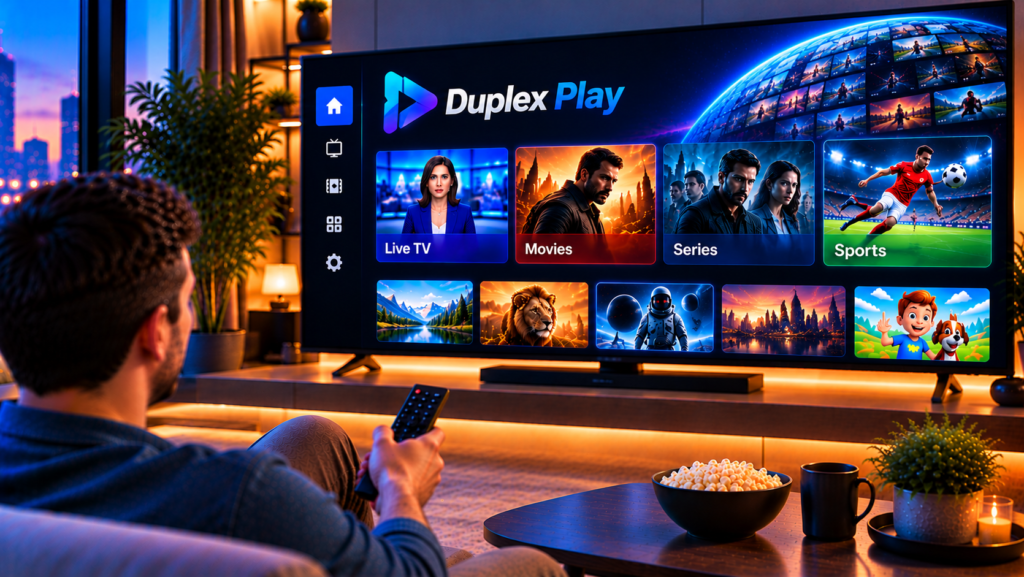
You install a new IPTV player, open it, and find an empty screen. If that sounds familiar, you are in good company. Duplex Play does not come with channels, so it needs your playlist before anything shows up.
This guide explains what Duplex Play is, how to install it, and how to activate it. You will also learn the different ways to add a playlist and how to fix the most common problems.
What Is Duplex Play?
Duplex Play, also known as IPTV Duplex Play, is a media player for Smart TVs and other devices. You bring your own playlist, and the app displays your live channels, movies, and series in a clean layout.
The app does not provide any content. It works like a TV with no cable box until you connect a service. Your IPTV provider supplies the content, and Duplex Play handles the viewing experience.
Key Features at a Glance
Duplex Play includes several tools that make daily viewing easier:
- Favorites and custom lists
- A program guide (EPG) when your playlist supports it
- Parental PIN locks for hiding or protecting categories
- Sorting options for channels and categories
- Support for multiple playlists
- Multiple interface languages, including right-to-left support
Which Devices Support Duplex Play?
The official website lists Android, Amazon Firestick, and Samsung Smart TVs. It also mentions Roku, LG webOS, and Android TV. Availability depends on your model, region, and app store, so always check your own device.
Older Samsung TVs sometimes need a different installation route. If you cannot find the app in your store, look for the device-specific instructions on the official website.
What You Need Before You Start
A little preparation makes the whole process smoother. Before you begin, gather these items:
- A compatible TV or device
- An active IPTV subscription
- Your playlist link, login details, or M3U file
- A phone or computer, because typing on a TV remote is slow
- An internet connection of at least 15 Mbps for HD and 25 Mbps for 4K
How to Install Duplex Play
The installation steps are quick on every platform. You install the app like any other, then move on to activation.
Install on Samsung or LG Smart TV
- Open the app store on your TV.
- Search for “Duplex Play”.
- Select the app and choose Install.
- Open it once the download finishes.
Install on Android and Android TV
- Open Google Play.
- Search for “Duplex Play”.
- Check the app name, then tap Install.
- Launch the app from your home screen.
Install on Amazon Firestick
- Use the search function on your Firestick.
- Look for Duplex Play, or follow the official instructions for Firestick.
- Download and open the app.
How to Activate Duplex Play
Activation links the app on your TV to your account on the official website. Most of the work happens on a phone or computer, which is far easier than using a remote.
When you open Duplex Play for the first time, the app shows two important details: a MAC address and a Device Key. Write them down exactly as they appear. You will need both to manage your playlist online.
Some versions of the app may require activation or a paid plan after a trial period. Review the current terms on the official website before you pay for anything.
How to Add Your Playlist to Duplex Play
This is the step that confuses most beginners. The good news is that there are several ways to do it, and each takes only a few minutes.

Method 1: Add a Playlist by URL
This is the fastest option if your provider gave you an M3U link.
- Open the playlist upload page on the official website.
- Enter your device MAC address.
- Type a name for the playlist.
- Paste your playlist URL and save it.
- Restart the app on your TV.
Method 2: Upload an M3U or M3U8 File
Choose this method if you received a file instead of a link.
- Open the upload page on your computer.
- Enter your MAC address and playlist name.
- Select the M3U or M3U8 file from your device.
- Upload it and restart the app.
Method 3: Add a Playlist Using Account Details
Some providers give you a host address, a username, and a password instead of a link. In that case, enter your MAC address, a playlist name, and those three details on the upload page.
This option is often called Xtream-style login. It tends to be tidy and less error-prone than a long link.
Where to Get Your Playlist Details
Your IPTV provider sends your login details or playlist link after you subscribe. They usually arrive by email or inside your account area. Treat them like a password, because anyone with the link can use your subscription.
A good provider also explains setup for each device. For example, the installation guides at Monster IPTV show you how to configure different players, which removes much of the guesswork.
M3U, M3U8, and Xtream: What Is the Difference?
These terms appear in almost every IPTV setup guide, so a quick explanation helps.
An M3U or M3U8 file is a list of channels and their stream addresses. An Xtream login is a set of credentials that lets the app fetch that list directly from your provider. Both achieve the same result.
If your provider supports both, the login method is usually easier to maintain. If your playlist changes, the app can refresh it without a new upload.
Duplex Play vs Other IPTV Players
Duplex Play is only one of many players. Your best choice depends on your device and how you like to browse content.
Android users often compare it with TiviMate, which has a strong guide layout. If you want to try that app, the TiviMate setup instructions explain the process step by step.
Other options include IPTV Smarters and Smart IPTV. Duplex Play stands out for its web-based playlist management, which is handy on Smart TVs. Some providers, such as Viking IPTV, also publish compatibility notes that help you compare apps before committing to one.
Common Duplex Play Problems and Fixes
Small issues can appear even after a correct setup. These are the most frequent ones.
The App Shows No Channels
Check that your MAC address and Device Key match what the app displays. Then confirm that you saved the playlist and restarted the app. Also make sure your subscription is active.
The Playlist Will Not Load
A single missing character in the URL can stop everything. Copy the link again from your provider and paste it without extra spaces.
Channels Keep Buffering
First, test your internet speed. If the speed is fine, restart your router and TV, or switch from Wi-Fi to a cable. In the playback settings, you can also try a different stream format, such as M3U8 or TS.
The EPG Is Missing
The program guide only appears when your playlist includes guide data. If it does not, ask your provider whether EPG is supported.
Tips for a Smoother Streaming Experience
A few simple habits keep your setup reliable:
- Use a wired connection for live sports
- Keep the app and TV firmware updated
- Hide categories you never watch to speed up browsing
- Set a PIN lock if children use the same TV
- Keep your MAC address and Device Key saved in a safe place
Is Duplex Play Safe to Use?
The app itself is a media player, and the developer states that it does not host or provide content. Your safety depends mostly on the provider you choose. Use trusted services, protect your credentials, and follow the rules that apply in your country.
Frequently Asked Questions About Duplex Play
What is Duplex Play used for?
Duplex Play is used to watch your own IPTV playlist on Smart TVs and other devices. It organizes live channels, movies, and series into an easy menu.
Does Duplex Play include channels?
No. The app does not provide content or playlists. You need a subscription from an IPTV provider.
How do I add a playlist to Duplex Play?
Open the upload page on the official website, enter your MAC address, and add your playlist by URL, file, or account details. Then restart the app on your TV.
Where do I find my MAC address and Device Key?
Both appear inside the app when you open it for the first time on your device. Copy them exactly as shown.
Why is my Duplex Play playlist not working?
The usual causes are a wrong link, a typing error, an expired subscription, or a failed sync. Re-enter your details and restart the app.
Final Thoughts
Duplex Play is easy to use once you understand the flow: install the app, note your MAC address and Device Key, then add your playlist online. Most problems come from small typing mistakes or a weak connection, and both are simple to fix.
If you are looking for a reliable subscription to use with your player, explore the plans and setup support at Monster IPTV. With stable HD, FHD, and 4K streaming across Smart TVs, phones, and PC, you can start watching in minutes.
