 Skip to main content
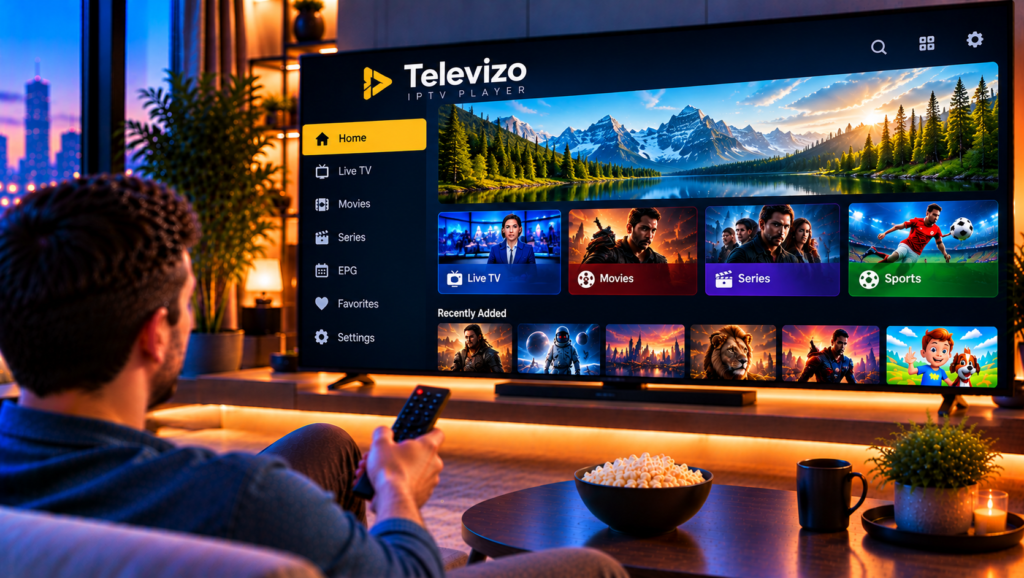
If you want a clean, flexible way to watch live TV on your phone, tablet, or Android TV box, Televizo IPTV is one of the most popular players to try. It looks simple at first, but a few settings decide whether your channels load quickly, your TV guide fills in properly, and your picture stays smooth.
This guide walks you through everything in plain language: what the app does, how to install it, how to add your playlist and EPG, and how to fix the most common problems.
What Is Televizo IPTV?
Televizo is an IPTV player for Android. It plays streams from playlists that you supply yourself. It does not include any channels, movies or series of its own.
Think of it as an empty television. The player gives you the screen and the controls, while your IPTV provider supplies the content.
Key Features at a Glance
- Support for several playlists in one app
- Electronic program guide (EPG) when your provider includes guide data
- Catch-up playback where the provider offers it
- Chromecast support for sending streams to a compatible TV
- Favorites, search and sorting for long channel lists
- Audio and subtitle track selection
- Parental control through the playlist editor
Televizo vs Televizo Companion
Many people get confused here. Televizo Companion is a separate Android app, and its Google Play listing states clearly that it is not a video player. It only manages your Televizo account, lets you rename or remove devices and helps you activate the Premium version.
If you only want to watch TV, install Televizo itself.
What You Need Before You Start
Preparation saves time. Before you open the app, gather these items:
- An Android phone, tablet, Android TV or TV box
- A stable internet connection (around 10 Mbps for HD and 25 Mbps for 4K is a sensible target)
- A playlist link or login details from your IPTV provider
- An EPG link, if your provider gives you one separately
How to Install Televizo on Android
The process takes less than two minutes.
- Open the Google Play Store on your device.
- Search for “Televizo – IPTV player”.
- Check that the developer is Andrey Menscikov, then tap Install.
- Open the app once installation finishes.
On Android TV, the app appears in the Play Store on the TV itself. If you use a box that has no Play Store, you can install the APK from a trusted source, but always download from a reputable site to avoid modified files.
How to Add Your Playlist in Televizo
This is the step that matters most. Televizo will stay empty until you add a source.
Step 1: Create a New Playlist
When you first launch the app, it asks you to add a playlist. Choose the option that matches what your provider gave you. The common options are an M3U link, Xtream Codes login details, or a local file.
Step 2: Enter the Details Carefully
Paste the link or type your credentials, then give the playlist a name you will recognize. One wrong character is the most common reason a playlist fails to load, so copy and paste instead of typing whenever possible.
If you are new to IPTV apps in general, our IPTV installation guides explain how playlists work across different devices and players.
Step 3: Wait for the Channel List to Load
Large playlists can take a minute to import. Once finished, your channels appear grouped by category. Tap any channel to start watching.
How to Set Up the EPG (TV Guide)
An EPG shows what is on now and what comes next. Without it, you only see a plain list of channel names.
Many providers build the guide data into the playlist. Others give you a separate XMLTV link. If yours does, add it in the playlist settings and let the app refresh.
If the guide looks empty or mismatched, try these checks:
- Confirm the EPG link is correct and still active
- Refresh the guide manually and wait a few minutes
- Check that your device clock and time zone are correct, because a wrong time zone shifts the whole schedule
Best Televizo Settings for Smooth Streaming
A few small adjustments can noticeably improve playback.
Choose the Right Player Option
Televizo lets you switch the internal player when a stream stutters. If one option struggles with a channel, test another before blaming your connection.
Use Favorites and Groups
Long playlists become tiring to scroll. Add your most-watched channels to favorites and sort the rest by group. You will reach your regular channels in seconds.
Use Audio and Subtitle Tracks
If a stream carries several languages, open the track menu while watching. This helps multilingual households, especially in Sweden, where many viewers switch between Swedish, English and other languages.
Set Up Parental Control
The playlist editor lets you hide channels you do not want children to see. One limitation is worth knowing: channels are blocked one at a time, so on a huge playlist, plan to spend a few extra minutes.
Using Televizo on Android TV and TV Boxes
Televizo works well on a big screen, but a few quirks come up often. Some users report that text in the playlist or favorites view appears cut off at the screen edges. This is usually a display scaling issue on the TV box, not a fault in the app. Adjust the screen scale or overscan setting in your device settings and the layout should fit correctly.
You can also use Chromecast to send a stream from your phone to a compatible TV if you prefer controlling playback from your hands.
Televizo Alternatives Worth Comparing
Televizo is not the only good player. Some viewers want deeper guide views, recording options or different navigation. A few user reviews of Televizo mention that navigation and the EPG layout feel less polished than other apps.
If you want to compare, TiviMate is a very popular alternative, and our TiviMate setup instructions show exactly how to configure it. Many people install two players and keep the one that feels better on their device.
Swedish viewers also tend to compare several providers before choosing a plan, and sites such as Viking IPTV are often part of that research. Whatever you choose, make sure the service gives you a stable playlist, a working guide and responsive support.
Common Televizo Problems and Quick Fixes
The Playlist Will Not Load
Check the link for typos or extra spaces. Confirm that your subscription is active and that your device has internet access. Restarting the app often clears a temporary glitch.
Channels Keep Buffering
Buffering usually comes from your network, not the app. Move closer to the router, use a wired connection on a TV box when possible and close other apps that use bandwidth. Switching the player option inside Televizo can also help.
The EPG Is Empty or Wrong
Re-check the guide link, refresh it manually and verify your time zone. If only some channels show guide data, the provider may not supply information for every channel.
The App Is Not Free Anymore
The basic version covers most needs, while Premium adds extra features. You activate Premium through Televizo Companion, so keep that app handy if you decide to upgrade.
For more troubleshooting answers about playlists, devices and streaming quality, the Monster IPTV FAQ is a helpful reference.

Frequently Asked Questions
Is Televizo IPTV free?
Televizo has a free version, with a Premium upgrade available for additional features. The app itself does not include any channels, so you still need a playlist from an IPTV provider.
Does Televizo come with channels?
No. Televizo is only a player. You must add your own playlist from a provider.
Can I use Televizo on Android TV?
Yes. Televizo runs on Android phones, tablets, Android TV and many TV boxes.
Does Televizo support Chromecast?
Yes. You can cast streams from your Android device to a compatible TV.
Why is my Televizo guide empty?
The most common causes are a wrong EPG link, a delayed refresh or an incorrect time zone on your device.
What is the difference between Televizo and Televizo Companion?
Televizo plays your channels. Televizo Companion only manages your account, devices and Premium activation.
Final Thoughts
Televizo is a capable, organized player for anyone who already has IPTV access. Once you install it, add your playlist, load the EPG and tune a few settings, you get a smooth and tidy viewing experience on almost any Android device.
If you are looking for a reliable Swedish IPTV service to pair with Televizo, with live channels, sports, movies and series in HD, FHD and 4K, you can explore the available packages at Monster IPTV and get started with a playlist that works from the first launch.
