 Skip to main content
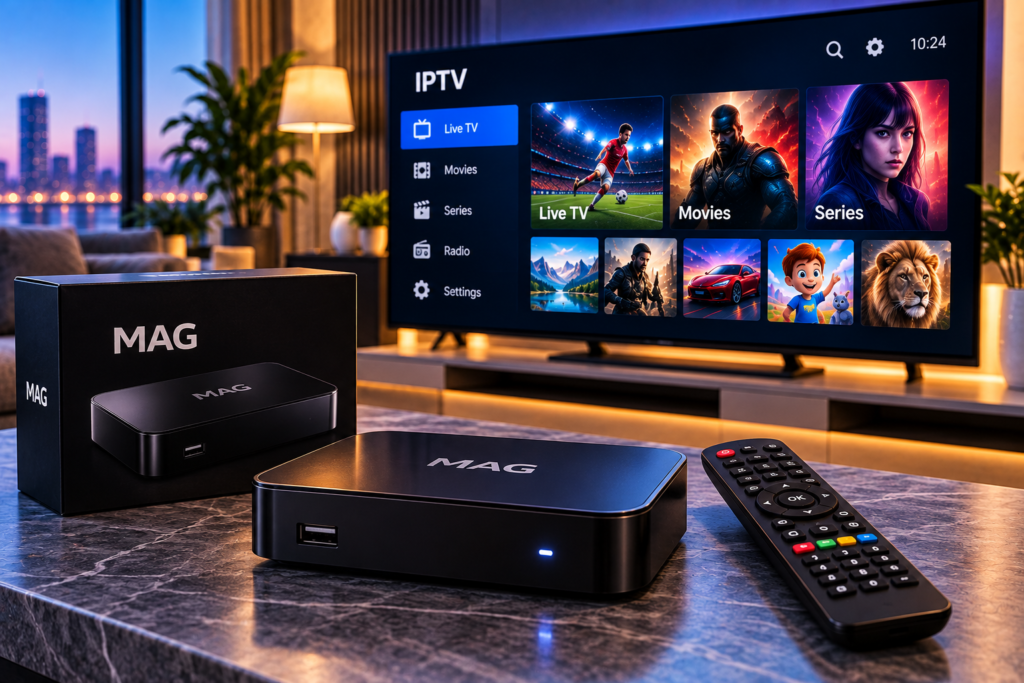
Setting up an iptv mag box is usually straightforward once you have the correct portal information from your IPTV provider. Most traditional MAG receivers use a portal-based system where the provider connects your subscription to the unique MAC address of your device.
MAG devices are widely used for IPTV because they are designed specifically for television streaming. Current MAG hardware from Infomir includes Linux and Google TV-based models, while several models support 4K and HEVC playback. The exact menus can differ between older and newer boxes, but the basic setup process remains similar.
This guide explains how to connect your MAG Box, locate its MAC address, configure the IPTV portal, restart the device, and solve common streaming problems.
What Is a MAG Box?
A MAG Box is a set-top streaming device originally designed for IPTV and OTT services. Instead of installing several television applications on a Smart TV, users can connect the box directly to a television through HDMI and control their IPTV service using a remote.
Many MAG devices use a portal supplied by the IPTV provider. Once the correct portal address and device MAC address are registered, the box can load the available live television channels, movies, series, sports, and other content associated with the subscription.
Newer MAG models can support features such as 4K resolution, HEVC video decoding, Ethernet, and Wi Fi. Hardware capabilities depend on the exact model, so users with older MAG receivers should check whether their device supports the video quality offered by their subscription.
What You Need Before Setting Up IPTV on a MAG Box
Before changing any settings, prepare the information required for activation.
You normally need:
- A compatible MAG Box and remote control
- A television with an available HDMI connection
- A stable internet connection
- An active IPTV subscription
- The portal URL supplied by your IPTV provider
- The MAC address of your MAG device
The portal address is particularly important. It tells your box where to connect and retrieve your IPTV service. Enter it exactly as supplied because even a small typing error may stop the portal from loading.
Your provider may also need the MAC address before activating the subscription. MAG addresses commonly begin with a format similar to 00:1A:79, although this can vary depending on the device.
If your provider has specific device requirements, checking the IPTV installation instructions before configuration can prevent unnecessary setup errors.
How to Set Up IPTV on MAG Box
Step 1: Connect the MAG Box to Your Television
Connect the MAG Box to your television using an HDMI cable.
Next, connect the power adapter and switch on the television. Select the HDMI input connected to your MAG device.
After the box starts, you should see its main interface on the screen.
For the most reliable IPTV experience, connect the box directly to your router with an Ethernet cable whenever possible. Wi Fi is convenient, but Ethernet can provide a more consistent connection for HD and 4K streams.
Step 2: Connect the MAG Box to the Internet
Open the device settings and locate the network section.
If you are using Ethernet, the box will usually detect the network automatically once the cable is connected.
For Wi Fi, open the wireless network settings, select your home network, enter the Wi Fi password, and confirm the connection.
Check that the device receives an IP address before continuing. If the box has no internet access, it will not be able to reach the IPTV portal.

Step 3: Find Your MAG Box MAC Address
Your IPTV provider may ask for your device MAC address before the portal can be activated.
The address is often printed on a label underneath the MAG Box. You may also find it inside the system information or device information menu.
Copy the address carefully.
Do not confuse the MAC address with the device serial number. They are different identifiers, and supplying the wrong one can prevent your IPTV subscription from loading.
Step 4: Open the Portal Settings
On traditional MAG interfaces, open Settings, followed by System Settings.
Look for an option called Servers and then open Portals.
Depending on the MAG model and software version, the menu wording may differ slightly. Older MAG devices commonly provide Portal 1 and Portal 2 fields.
If you cannot find these settings, confirm that your particular MAG model supports the portal configuration method used by your provider.
Step 5: Enter the IPTV Portal Address
Under Portal 1, you may see two main fields:
Portal 1 Name
Enter a recognizable name for the service.
Portal 1 URL
Enter the portal address supplied by your IPTV provider.
Check every character before saving the settings. Incorrect punctuation, missing characters, or spaces can cause portal loading errors.
The portal address should always come directly from your IPTV provider. Avoid copying portal details from random websites because subscriptions and device registrations are normally provider specific.
People comparing Nordic services may encounter providers such as Viking IPTV, but portal credentials from one service should not be assumed to work with another provider.
Step 6: Save the Settings and Restart the Box
Save your portal settings and return to the previous menu.
Restart the MAG Box.
During startup, the device should attempt to connect to the configured IPTV portal. If the MAC address has been activated correctly and the portal URL is valid, the IPTV interface should appear.
Loading can take a little longer during the first connection because the box needs to retrieve information from the IPTV server.
How to Improve Streaming Quality on a MAG Box
Correct portal configuration is only part of a smooth IPTV experience. Your network also affects channel loading, picture quality, and buffering.
Use Ethernet When Possible
A wired connection is generally more stable than Wi Fi, particularly when streaming high bitrate HD, FHD, or 4K content.
If Ethernet is unavailable, keep your MAG Box close to the router and avoid placing it behind thick walls or other electronics that may weaken the wireless signal.
Restart Your Router Occasionally
Long running routers can occasionally develop network issues. Restarting the router and MAG Box can refresh the connection and resolve temporary playback problems.
Check Device Capability
Not every MAG model has the same hardware.
For example, modern MAG devices can support 4K and HEVC video, while older receivers may have more limited decoding capabilities. If 4K channels struggle while standard HD channels work correctly, the problem may involve the device rather than the IPTV subscription.
Avoid Heavy Network Usage
Large downloads, cloud backups, online gaming, and several simultaneous 4K streams can consume significant bandwidth.
If buffering occurs at busy times, temporarily stop other bandwidth intensive activity and test the same channel again.
Common MAG Box IPTV Problems and Fixes
Portal Does Not Load
First, confirm that your internet connection is working.
Then check the portal URL for typing mistakes. If the URL is correct, confirm with your provider that your MAG Box MAC address has been activated.
Restarting the box after activation is often necessary.
Authentication or Access Error
This can happen when the provider has not registered the correct MAC address or when the subscription is inactive.
Compare the MAC address supplied to the provider with the address displayed by the device.
For additional service related answers, the Monster IPTV FAQ covers common questions that may help distinguish account problems from device problems.
Channels Freeze or Buffer
Buffering does not automatically mean the portal is configured incorrectly.
Test several channels. If only one channel is affected, the problem may be related to that particular stream. If every channel buffers, test the internet connection and switch from Wi Fi to Ethernet if possible.
Restart the router and MAG Box before changing advanced settings.
Black Screen With Audio
A black picture with working audio can indicate a video codec, resolution, or compatibility problem.
Try another channel and review your video output settings. Older MAG models may also struggle with newer video formats that require more capable hardware.
Device Is Stuck on Loading Screen
Disconnect the MAG Box from power for a short period, reconnect it, and allow it to restart.
If the problem continues, verify the portal URL and network connection. Avoid performing a factory reset unless necessary because doing so removes saved settings and requires configuration again.
Can You Use Any IPTV Service on a MAG Box?
Not automatically.
The IPTV provider must support the connection method used by your MAG device. Traditional MAG portal setups commonly rely on the device MAC address and a provider supplied portal.
Some modern IPTV services instead use applications, playlists, or login credentials designed for Android TV, Smart TVs, mobile devices, or other IPTV players.
Before purchasing a subscription specifically for a MAG Box, confirm compatibility with your exact model.
Frequently Asked Questions
Where Do I Find the MAC Address on a MAG Box?
The MAC address can usually be found on the label underneath the device or inside its system information menu. Copy it exactly when sending it to your IPTV provider.
Why Is My MAG Box Portal Not Loading?
Common causes include an incorrect portal URL, inactive subscription, unregistered MAC address, or missing internet connection. Check these items before resetting the device.
Is Ethernet Better Than Wi Fi for IPTV?
Ethernet is usually preferable for stable IPTV streaming because it avoids many forms of wireless interference. Good Wi Fi can still work well when the box is close to the router.
Can a MAG Box Stream 4K IPTV?
Some MAG models support 4K and HEVC playback, but capability varies by model. Your television, internet connection, IPTV stream, and MAG hardware must all support the required quality.
Do I Need an IPTV App on a MAG Box?
Traditional MAG setups generally connect directly through a provider portal rather than requiring a separate IPTV application. Newer devices based on platforms such as Google TV may provide different installation options.
Setting up an IPTV MAG Box becomes much easier once you have the correct portal URL, registered MAC address, and stable internet connection. If you want a service designed for Swedish viewers across compatible streaming devices, you can review the available options from Monster IPTV and choose the subscription that fits your viewing needs.
