 Skip to main content
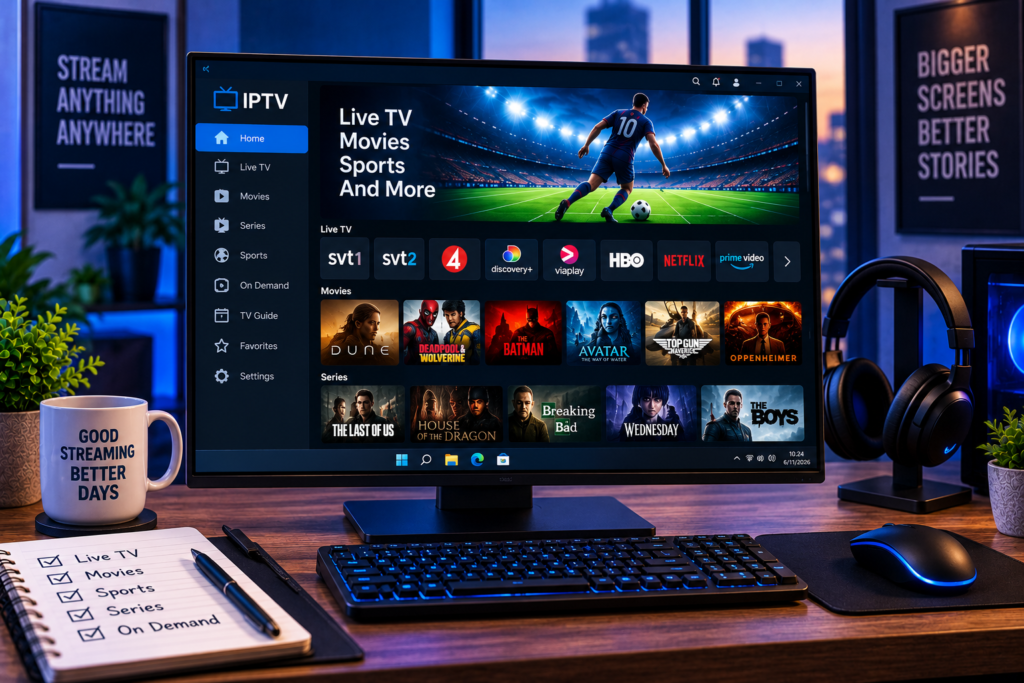
Watching IPTV for PC is one of the easiest ways to enjoy live TV, sports, movies, and series without needing a separate Smart TV or streaming box. A Windows desktop or laptop can run dedicated IPTV players, open M3U playlists, use Xtream Codes credentials, display an Electronic Program Guide, and stream HD, FHD, or 4K content depending on your service and internet connection.
The challenge is choosing the right method. Some Windows players are simple but offer limited TV guide features. Others provide a complete television-style interface with channel groups, favorites, EPG data, movies, and series.
This guide explains the best ways to watch IPTV on a PC in 2026, how each setup works, and how to solve common playback problems.
What Do You Need to Watch IPTV on a PC?
You normally need three things: a Windows computer, an IPTV player, and legitimate access details from your IPTV service.
Your provider may supply an M3U URL or Xtream Codes credentials. Xtream Codes typically includes a server address, username, and password, while an M3U setup normally uses one playlist address.
The player itself does not automatically provide television channels. Think of it as the software that organizes and plays the content supplied through your IPTV access.
For most users, the easiest setup is a dedicated Windows IPTV player combined with Xtream Codes because it can organize live channels, movies, series, categories, and EPG information in one interface.
Best Methods to Watch IPTV for PC
There is no single method that suits every Windows user. The best option depends on whether you want a complete TV guide, simple playlist playback, advanced customization, or compatibility with a particular application.
Method 1: Use a Dedicated Windows IPTV Player
A native IPTV player is usually the most convenient choice for everyday viewing.
Applications designed specifically for Windows can provide channel categories, favorites, search, EPG information, movie libraries, series sections, and account management. They also tend to work more naturally with a keyboard and mouse than Android applications running through an emulator.
Players in this category may support both M3U playlists and Xtream Codes.
When comparing players, focus on EPG support, playlist loading speed, search, favorites, full-screen playback, hardware acceleration, multiple profiles, and whether the software receives regular updates.
Do not choose an application simply because it has IPTV in its name. Check the publisher carefully, especially when several similarly named applications appear in an app store.
Method 2: Watch IPTV With VLC Media Player
VLC is a practical option when you want a straightforward way to open an M3U playlist or test whether a stream works.
Open VLC, select the option for opening a network stream, enter the playlist or stream URL supplied by your authorized provider, and start playback.
The main advantage of VLC is simplicity. It is also useful for troubleshooting because it helps determine whether a particular stream can play independently of your regular IPTV application.
Its weakness is the television experience. Users who want rich channel organization, a polished EPG, favorites, VOD categories, and a traditional TV interface will usually prefer dedicated IPTV software.
VLC therefore works particularly well as a backup player or diagnostic tool.
Method 3: Use IPTV Smarters Style Players
Smarters-style players remain popular because the setup process is familiar and usually supports common IPTV login formats.
After installing a compatible Windows version, users can generally add their account through an M3U playlist or through Xtream Codes details.
Xtream Codes can be convenient because the player may retrieve several types of account information through one login, including live TV categories, movies, series, and EPG data when these are supplied by the service.
If you are setting up IPTV for the first time, Monster IPTV has broader IPTV installation instructions covering the information typically needed to connect compatible devices and applications.
Method 4: Run an Android IPTV App on a PC
Some users want the same interface on their PC that they already use on an Android TV device. An Android emulator can sometimes make this possible.
Programs such as BlueStacks create a virtual Android environment inside Windows. An IPTV application can then run inside that environment if the app and emulator are compatible.
This approach has disadvantages. An emulator consumes additional memory and processor resources, introduces another software layer, and can occasionally create compatibility or playback problems.
For most PC users, a native Windows application is therefore the simpler option. Emulation makes more sense when a specific Android app provides a feature that you cannot find in Windows software.
M3U Versus Xtream Codes on Windows
Understanding these two login methods makes IPTV setup considerably easier.
M3U Playlist
An M3U playlist is essentially a list containing channel information and stream locations. You normally paste an M3U URL into a compatible IPTV player and allow the application to load the available content.
M3U works across many players, making it a flexible format.
However, EPG information may sometimes require a separate XMLTV address or additional configuration, depending on the player and service.
Xtream Codes
Xtream Codes login typically asks for a server URL, username, and password.
For users who want live channels together with movies, series, categories, and program information, this can provide a more organized setup when the provider and player support those features.
Never post either type of credential publicly. IPTV playlist URLs and account information can contain private login details.

How EPG Works on IPTV for PC
EPG means Electronic Program Guide. It provides the familiar television schedule showing the current program and what comes next.
EPG support is one of the biggest differences between basic players and more complete IPTV applications.
If channels play correctly but program information is missing, the problem may not be the video stream. The EPG source may need to refresh, channel identifiers may not match the guide, or the application may require a separate EPG URL.
This issue appears frequently in Windows player discussions because different applications handle guide data differently.
When choosing a PC player, test EPG loading before committing to that application as your main setup.
How to Improve IPTV Streaming on Windows
A powerful PC does not automatically guarantee smooth IPTV. Streaming depends on the entire path between the source and your screen.
Check Your Internet Connection
A stable connection matters more than headline broadband speed alone. Wi Fi interference can cause temporary drops even when a speed test looks excellent.
If possible, test Ethernet when troubleshooting repeated buffering. This helps separate a local wireless problem from a stream-related issue.
Close Heavy Background Programs
Large downloads, cloud synchronization, online games, browser tabs playing video, and Windows updates can compete for bandwidth and system resources.
Closing unnecessary applications can improve performance, especially on older laptops.
Enable Hardware Acceleration
Many modern players can use the graphics processor to decode video. Hardware acceleration can reduce processor load when playing high-resolution streams.
The exact setting varies by application, so only change it when playback is unstable or CPU usage is unusually high.
Compare HD, FHD, and 4K Carefully
Higher resolution requires more bandwidth and decoding power. A stable FHD stream may provide a better experience than an unstable 4K source.
For Swedish users comparing available viewing options, the channel selection for IPTV in Sweden can help determine whether the content categories you want are available before you focus on resolution alone.
Should You Use a VPN With IPTV on PC?
A VPN creates an encrypted connection between your computer and a VPN server. It can improve privacy, but it is not automatically required simply because you use IPTV.
A VPN can sometimes change network routing, while in other cases it can reduce streaming speed because traffic travels through an additional server.
Whether one is appropriate depends on your privacy requirements, network conditions, provider terms, and local rules.
How to Choose an IPTV Service for Your PC
Your player is only one part of the experience. Stream stability, channel availability, picture quality, EPG data, and support depend heavily on the IPTV source you use.
Look for services that clearly explain device compatibility and login methods. Confirm that the channels you actually watch are included rather than comparing providers purely by advertised channel totals.
Another provider users may encounter while researching Scandinavian services is JA IPTV. Regardless of which company you compare, evaluate each service using the same standards: channel relevance, peak time stability, picture quality, EPG, device compatibility, support, and transparent subscription information.
Common IPTV for PC Problems
Channels Keep Buffering
First, test another channel. If every channel buffers, check your internet connection and local network. If only one source is affected, the problem may be specific to that stream.
IPTV Works but EPG Is Empty
Refresh the guide and restart the application. Also confirm that the service provides EPG data and that your player supports the format being supplied.
You Get Audio but No Picture
This can indicate a video decoding or codec problem. Try another playback engine if your application supports one, update your graphics driver, or test the stream in a different player.
Login Details Do Not Work
Check the server address, username, and password carefully. Avoid accidentally adding spaces when copying credentials.
If the same account fails in several compatible applications, the account information or server may need to be checked with the provider.
Is IPTV on PC Legal?
IPTV is simply a technology used to transmit television through internet protocols. Many legitimate broadcasters and television services use internet-based delivery.
Legality depends on whether the content source has the appropriate rights to distribute the channels, films, sports, or programs it provides.
Using a Windows IPTV player does not establish whether the underlying content is authorized. Users should check the service, terms, and applicable content rights before streaming.
Frequently Asked Questions
What Is the Best Way to Watch IPTV on a PC?
For most people, a dedicated Windows IPTV player using Xtream Codes or an M3U playlist provides the easiest setup. A dedicated player usually offers better channel organization and EPG functionality than a basic media player.
Can I Watch IPTV on Windows 11?
Yes. Windows 11 can run compatible IPTV players and general media applications capable of opening supported network streams and playlists.
Can VLC Play IPTV?
Yes. VLC can open compatible M3U playlists and individual network streams. It is particularly useful for simple playback and troubleshooting, although dedicated IPTV applications generally offer a better television interface.
What Is the Difference Between an IPTV Player and Provider?
An IPTV player is software that displays streams. The provider supplies the authorized content access, playlist, server details, or account credentials used by the player.
Do I Need a Powerful PC for IPTV?
Not necessarily. Most modern computers can handle ordinary HD streaming comfortably. FHD and 4K playback depend on the stream format, internet connection, graphics capabilities, player, and hardware decoding support.
Final Thoughts
Watching IPTV on a computer can be simple once you separate the player, login method, EPG, and streaming service into their individual roles. A native Windows player is usually the most convenient everyday option, VLC works well for straightforward playback and testing, and emulation is better reserved for cases where you specifically need an Android application. If you want to set up IPTV for PC with access designed around Swedish viewing needs, live channels, sports, movies, series, and multiple devices, you can explore the available options at Monster IPTV.
