 Skip to main content
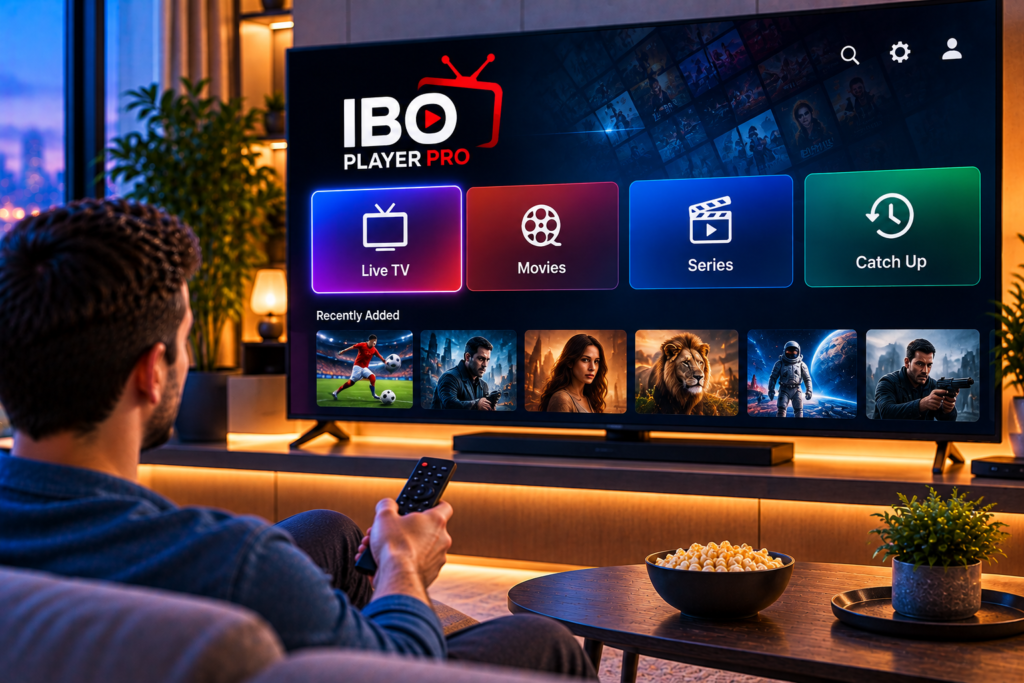
If you have ever tried to watch IPTV on a Smart TV, you know the hardest part is rarely the subscription. It is finding a media player that is clean, stable, and simple to set up. That is why IBO Player Pro has become so popular with viewers in Sweden and across Europe.
This guide explains what the app is, how activation works, and how to load your playlist step by step. It also covers common problems and how to fix them.
What Is IBO Player Pro?
IBO Player Pro is an IPTV media player app. It plays content from a playlist that you provide, usually through an M3U link or Xtream Codes login details. It is available on many Smart TV platforms and Android-based devices.
Here is the part many beginners miss: IBO Player Pro does not include any channels or content of its own. It is only the player. You need a separate IPTV subscription to supply the playlist.
Think of it like a DVD player. The device is useful, but you still need a disc to watch anything.
Why Do People Choose IBO Player Pro?
- A clear interface with live TV, movies, and series sections
- Support for playlist formats such as M3U and Xtream Codes
- Compatibility with several Smart TV brands and Android devices
- Playlist management from a web page, so you do not have to type long links with a TV remote
- Favorites, search, and category sorting
Supported Devices
Availability changes over time, so always check your device’s app store first. In general, IBO Player Pro works on:
- Samsung Smart TVs (Tizen)
- LG Smart TVs (webOS)
- Android TV and Google TV boxes
- Amazon Fire TV and Fire Stick
- Android phones and tablets
- Some Windows PCs
If you cannot find the app on your TV, a Fire Stick or Android TV box is an easy workaround.
How IBO Player Pro Activation Works
Activation is the step that confuses most new users. It is simpler than it looks.
Every device that runs the app gets two identifiers:
- A MAC address (a unique device ID shown in the app)
- A device key (a code that works together with the MAC address)
When you open the app for the first time, both appear on the screen. You use them to log in on the official management website, where you can add your playlist and activate the device.
Many users hit trouble here because they type the MAC address wrong. Write it down carefully, and double-check every character before you submit.
Free Trial vs Paid Activation
The app has typically offered a short trial period. After it ends, a paid activation is usually required to keep using it. Pricing and terms can change, so read the current details on the official website before you pay.
Step-by-Step: How to Set Up IBO Player Pro
Step 1: Install the App
Search for “IBO Player Pro” in your TV’s app store or on your Android device. Install it and open it.
Step 2: Note Your MAC Address and Device Key
The first screen shows both codes. Take a photo with your phone so you do not have to memorize them.
Step 3: Log In to the Management Page
On your phone or computer, open the official IBO Player website and go to the playlist section. Enter your MAC address and device key.
Step 4: Add Your Playlist
Give the playlist a name and paste the M3U link or enter your Xtream Codes details. Your IPTV provider gives you these after you subscribe.
Step 5: Save and Restart the App
Close the app on your TV completely, then reopen it. Your channels, movies, and series should now load. The first load can take a minute, especially with large playlists.
If you would like a more detailed walkthrough for other players, our IPTV installation instructions cover several devices and apps in plain language.

Playlist Types: M3U vs Xtream Codes
You will see both terms often, so here is the difference.
M3U playlist: a single link that contains all channels and categories. It is simple to paste, but long links are easy to mistype.
Xtream Codes: a login made of a server address, a username, and a password. It usually gives a cleaner experience, with better categories and an organized program guide.
If your provider offers both, Xtream Codes is often the smoother choice.
What to Look for in an IPTV Provider
Because IBO Player Pro only plays what you give it, your streaming quality depends heavily on your provider. A few things matter most:
- Stable servers that do not freeze during live sports
- HD, FHD, and 4K options for modern TVs
- Swedish and Nordic channels alongside international ones
- A program guide (EPG) that actually matches the schedule
- Fast support when something goes wrong
There are many services in the Nordic market, including Viking IPTV, so it is worth comparing a few before you commit. Look at channel lists, device support, and real user feedback rather than only the price.
You can also check our channel overview to see the kind of Swedish and international content a full subscription usually includes.
Common IBO Player Pro Problems and Fixes
Even a good setup can hit small problems. Here are the ones that appear most often.
The Playlist Does Not Load
- Check that the M3U link has no extra spaces
- Confirm that your subscription is active
- Restart the app and the TV
- Re-save the playlist on the management page
Channels Buffer or Freeze
- Test your internet speed. For 4K, aim for a stable connection of at least 25 Mbps
- Use a wired Ethernet connection when possible
- Move your router closer, or switch to the 5 GHz Wi-Fi band
- Try lowering the stream quality for a few minutes
The App Asks for Activation Again
- Check that you are using the correct MAC address
- Make sure the device key matches the one shown on screen
- Contact the app’s official support if it keeps happening
No Program Guide
Some playlists need a separate EPG link. Ask your IPTV provider if one is available for your subscription.
IBO Player Pro vs Other IPTV Players
IBO Player Pro is not the only option. TiviMate, Smart IPTV, and others are also widely used. Each has strengths:
- IBO Player Pro: a clean layout and easy playlist management from the web
- TiviMate: advanced guide features and recording on Android devices
- Smart IPTV: a long-standing option for some Samsung and LG TVs
If you want to compare alternatives, our guide for Smart IPTV setup shows how a different player works on Smart TVs.
Tips for Better Streaming Quality
A few small habits make a big difference:
- Keep the app updated to the latest version
- Clear the app cache if it starts to feel slow
- Avoid running heavy downloads while you stream
- Restart your router once a week
- Use a decent HDMI cable and a TV mode that supports your resolution
Is IBO Player Pro Worth It?
For most people, yes. It is simple, readable, and flexible. The main thing to remember is that the app and the content are separate. A great player cannot fix a weak playlist, and a great playlist needs a reliable player.
If you take your time with the MAC address, choose a stable provider, and follow the steps above, you can be watching within about ten minutes.
Frequently Asked Questions
What is IBO Player Pro used for?
It is used to play IPTV content from your own playlist on Smart TVs, Android devices, and Fire TV devices. It does not provide channels itself.
Does IBO Player Pro include channels?
No. You must add a playlist from an IPTV subscription to see live TV, movies, and series.
How do I activate IBO Player Pro?
Open the app, note the MAC address and device key, then log in on the official website, add your playlist, and complete activation there.
Can I use IBO Player Pro on more than one device?
Each device has its own MAC address and key, so each one is activated separately.
Why is my IBO Player Pro playlist not loading?
The most common reasons are a mistyped link, an expired subscription, or a weak internet connection. Re-saving the playlist and restarting the app usually fixes it.
If you run into other questions along the way, our IPTV FAQ answers many of the common ones.
Final Thoughts
IBO Player Pro makes IPTV viewing much easier once you understand the basics: install the app, note the device codes, add your playlist, and restart. The rest is about choosing a reliable service that matches the quality your TV can display.
If you are ready for stable HD, FHD, and 4K streaming with Swedish and international channels, take a look at the packages at Monster IPTV. You will get an easy setup, support for popular players like IBO Player Pro, and a smooth viewing experience on all your devices.
