 Skip to main content
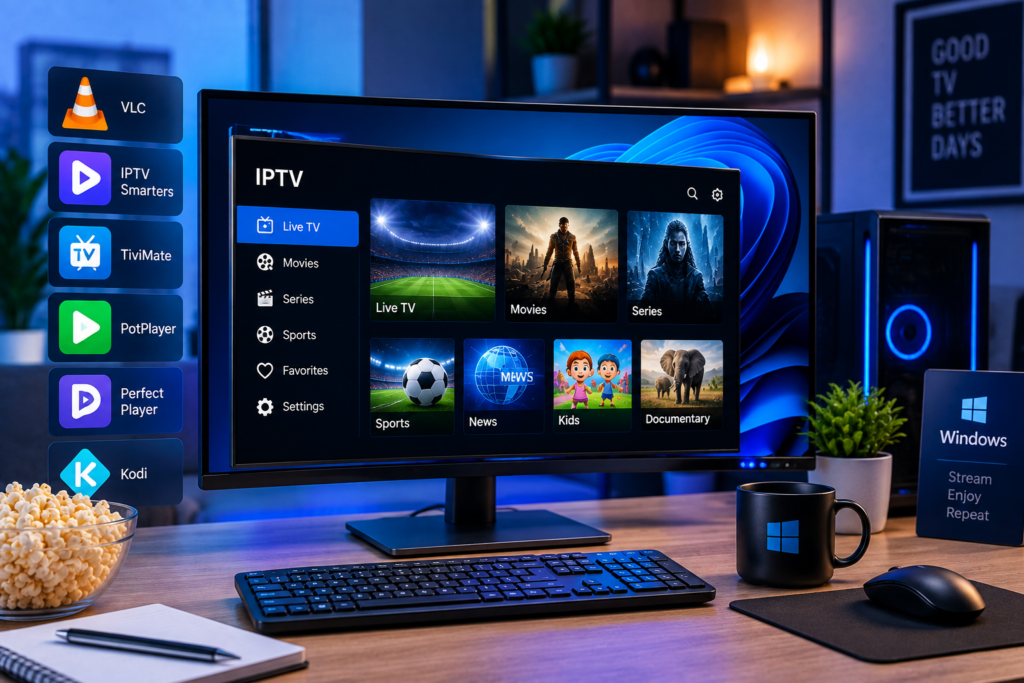
Finding the best IPTV player for Windows can make a noticeable difference to how live television, sports, movies, and series look and feel on your PC. A reliable player should load channels quickly, handle large playlists without becoming sluggish, display an accurate EPG, and play HD, FHD, or 4K streams without constant buffering.
Windows users have plenty of choices in 2026, but not every IPTV application serves the same purpose. Some provide a television style interface with channel categories and programme guides, while others focus mainly on reliable video playback.
For most users, IPTV Smarters Pro offers the easiest overall experience. MyIPTV Player is a good option for people who prefer a straightforward Windows interface, while IPTVnator provides more advanced playlist flexibility. VLC remains excellent for quickly testing streams, and Kodi suits users who want IPTV inside a complete media centre.
Quick Answer: What Is the Best IPTV Player for Windows?
For most Windows PC users, IPTV Smarters Pro is the best overall choice because it combines simple setup, live TV navigation, movies, series, EPG support, and common IPTV login methods in one interface.
However, the right choice depends on how you watch.
IPTV Smarters Pro: Best overall for everyday IPTV viewing
MyIPTV Player: Best for a simple Windows experience
IPTVnator: Best for advanced playlist management
VLC Media Player: Best for quickly opening and testing M3U streams
Kodi: Best for users who want a complete media centre
Before installing anything, check which connection details your IPTV provider supplies. An M3U URL, Xtream Codes account, and XMLTV EPG URL are handled differently by different applications.
What Should a Good Windows IPTV Player Offer?
An IPTV player does not normally provide television channels itself. Instead, it reads the playlist or account information supplied by an IPTV service and turns that information into a usable viewing interface.
For Windows 10 and Windows 11, a good player should support common formats such as M3U and M3U8, provide stable video decoding, organise channel groups clearly, and make full screen viewing simple.
EPG support is particularly useful for Swedish viewers who regularly switch between news, entertainment, sports, movies, and international channels. A proper electronic programme guide lets you see what is currently playing and what is coming next without opening individual streams.
Hardware acceleration also matters when watching FHD and 4K content. Using the graphics processor for video decoding can reduce unnecessary CPU load and help compatible computers maintain smoother playback.
You can find general configuration information in the Monster IPTV IPTV installation instructions before setting up a new Windows player.
1. IPTV Smarters Pro: Best Overall Windows IPTV Player
Why IPTV Smarters Pro Works Well
IPTV Smarters Pro is a practical choice for people who want their Windows PC to behave more like a conventional television interface.
Instead of displaying a basic list of stream URLs, the application can organise content into live television, movies, series, favourites, and programme categories. This makes it easier to navigate a large IPTV subscription.
The application is especially convenient when your provider gives you Xtream Codes login information. Depending on the configuration supplied by your IPTV service, you may also be able to access EPG information, catch up features, and video-on-demand content.
Best For
IPTV Smarters Pro suits beginners, families, and users who want one familiar IPTV layout across several types of devices.
It is also useful when you regularly move between a PC, mobile device, and television because the general navigation experience remains familiar.
Its main advantage over a basic media player is organisation. If your subscription includes thousands of channels and a large movie or series library, categories and search tools become more important than simply being able to open a stream.

2. MyIPTV Player: Best for a Simple Windows Experience
Why Choose MyIPTV Player?
MyIPTV Player has long been associated with Windows users who prefer a clean IPTV focused interface without turning their computer into a complete multimedia system.
It is most suitable for people using M3U playlists and EPG sources who want familiar controls for browsing channels, organising favourites, and watching television from a desktop or laptop.
The interface is generally easier to understand than a heavily customised media centre, which makes it useful for people setting up IPTV on a PC for the first time.
Best For
Choose this type of player if your priorities are simplicity, playlist management, and straightforward Windows navigation.
Availability and feature sets can change between software releases, so users should always check the current official application listing before installing a Windows IPTV player.
3. IPTVnator: Best for Playlist Flexibility
IPTVnator is one of the more interesting choices for users who want greater control over IPTV sources. It is an open-source, cross-platform IPTV player with Windows support.
It supports M3U and M3U8 playlists, XMLTV EPG information, Xtream Codes, Stalker portals, channel groups, favourites, playlist updates, catch-up features, and external players such as VLC.
Why IPTVnator Stands Out
Its biggest strength is flexibility. You can import playlists from a remote URL or local file and organise several viewing sources within a dedicated IPTV interface.
That makes IPTVnator attractive to more experienced viewers who understand playlists, EPG URLs, and portal configurations but still want a clean graphical interface.
It is also useful for users who prefer open-source software and want a player that is actively designed around IPTV rather than adapting a general video player for live television.
Best For
IPTVnator is best suited to advanced Windows users, people managing multiple playlists, and viewers who value detailed configuration options.
4. VLC Media Player: Best for Testing IPTV Streams
VLC Media Player takes a different approach. It is primarily a general media player rather than a complete IPTV television interface.
That is exactly why it remains useful.
If you receive an M3U stream URL and simply want to discover whether the stream works on your PC, VLC can be a fast way to test it. You do not need a complicated channel interface just to determine whether a playlist or individual stream can play correctly.
When VLC Makes Sense
VLC is useful for troubleshooting buffering, playback, codec, or stream-related problems because it removes much of the extra interface found in dedicated IPTV applications.
However, viewers who watch IPTV every evening may find a dedicated player more convenient because features such as EPG navigation, channel categories, favourites, VOD libraries, and television-style browsing matter more during regular use.
If playback remains unstable across several applications, the player may not be the real problem. Network congestion, WiFi quality, the source stream, or routing can also influence performance. Monster IPTV’s guide to using a VPN with IPTV can help users understand when network routing and privacy tools may be relevant.
5. Kodi: Best IPTV Player for Media Centre Users
Kodi is a better fit for users who want much more than a simple IPTV application. It can turn a Windows computer into a complete media centre containing live television and other locally managed media.
For IPTV playback, Kodi provides its IPTV Simple Client through its PVR system. The official addon supports M3U playlists, live television sources, radio channels, and EPG functionality.
Why Choose Kodi?
Kodi offers extensive customisation and a television-friendly interface once properly configured. It can be particularly useful on a Windows mini PC connected permanently to a large television.
The disadvantage is setup complexity. Someone who only wants to enter IPTV credentials and start watching may find IPTV Smarters Pro easier.
Kodi therefore makes the most sense when IPTV is one part of a larger home media setup rather than the only feature you need.
Which IPTV Player Should You Choose?
Your IPTV login method should influence your decision.
If your provider supplies an Xtream Codes username, password, and server address, IPTV Smarters Pro or IPTVnator can provide a convenient setup.
If you receive an M3U playlist URL, VLC, Kodi, MyIPTV Player, and IPTVnator become practical options.
If having an EPG and television-style channel guide is important, choose a dedicated IPTV player rather than relying solely on VLC.
For a basic Windows laptop, simplicity may matter most. For a powerful desktop connected to a 4K display, hardware decoding, interface quality, and EPG management become more important.
Users comparing different IPTV options for Scandinavian viewing may also come across providers such as Viking IPTV while researching available services. Whatever provider you use, player compatibility should be checked before settling on your Windows setup.
How to Set Up IPTV on a Windows PC
Step 1: Get Your IPTV Login Information
Your provider should normally give you an M3U playlist, Xtream Codes credentials, or another supported login method.
Keep this information private because it can provide access to your subscription.
Step 2: Install Your Preferred Player
Download the application from its official source whenever possible. Avoid unofficial modified installers because IPTV credentials can contain information you would not want exposed to unknown software.
Step 3: Add Your Playlist or Account
Open the player and choose the relevant playlist or account option.
Enter the information exactly as supplied by your provider. A missing character in a server address, username, password, or playlist URL can prevent channels from loading.
Step 4: Load the EPG
If your provider supplies an XMLTV EPG URL, add it to the appropriate programme guide setting.
Give large playlists time to load during the first import.
Step 5: Test Different Channels
Test an SD or HD channel first, then move to FHD or 4K content. This makes it easier to determine whether performance problems are related to stream quality, decoding, or your connection.
How to Reduce IPTV Buffering on Windows
Buffering is not automatically a sign that you need a different player.
Start by using a wired Ethernet connection where practical. If you rely on WiFi, a strong 5 GHz or modern WiFi connection is generally preferable when the router and PC are close enough for a stable signal.
Close unnecessary downloads and bandwidth-heavy applications while testing. You can also compare the same channel in two players. If one application struggles while another plays the same stream smoothly, decoder settings or player configuration may be responsible.
For 4K playback, enable hardware-accelerated decoding where the chosen application and graphics hardware support it. Keeping Windows and your graphics drivers current can also help maintain reliable video decoding.
Frequently Asked Questions
What is the best free IPTV player for Windows?
VLC is an excellent free option for basic M3U playback and testing. IPTVnator is better for users who want a dedicated IPTV interface, playlist management, EPG support, and additional IPTV features.
Can I watch IPTV on Windows 11?
Yes. Windows 11 can run several IPTV and media applications capable of opening supported IPTV playlists and account formats. The exact setup depends on your chosen player and the credentials supplied by your service.
Does an IPTV player include channels?
Usually not. An IPTV player is the software used to organise and play content supplied separately through an IPTV subscription or authorised playlist. IPTVnator, for example, explicitly states that it does not provide playlists or digital content.
Is VLC better than IPTV Smarters Pro?
VLC is better for quick stream playback and troubleshooting. IPTV Smarters Pro is usually more convenient for everyday viewing because it provides an interface designed around live television, movies, series, categories, and programme information.
Which IPTV player is best for 4K Windows streaming?
There is no single player that guarantees better 4K quality because playback also depends on the source stream, internet connection, codec, graphics hardware, processor, and decoder settings. A player with reliable hardware acceleration is generally preferable for demanding high-resolution streams.
Final Thoughts
The best IPTV player for Windows is the one that matches your playlist format, viewing habits, and PC hardware. IPTV Smarters Pro is the strongest all around option for most users, while IPTVnator gives advanced users greater playlist flexibility. VLC is excellent for testing streams, MyIPTV Player keeps things simple, and Kodi provides the deepest media centre experience. If you want to pair your preferred Windows player with a stable IPTV subscription offering live television, sports, movies, series, HD, FHD, and 4K viewing options, you can explore Monster IPTV and choose the setup that fits your devices.
