 Skip to main content
IPTV Audio Out of Sync: Causes and How to Fix It
IPTV Audio Out of Sync: Causes and How to Fix It
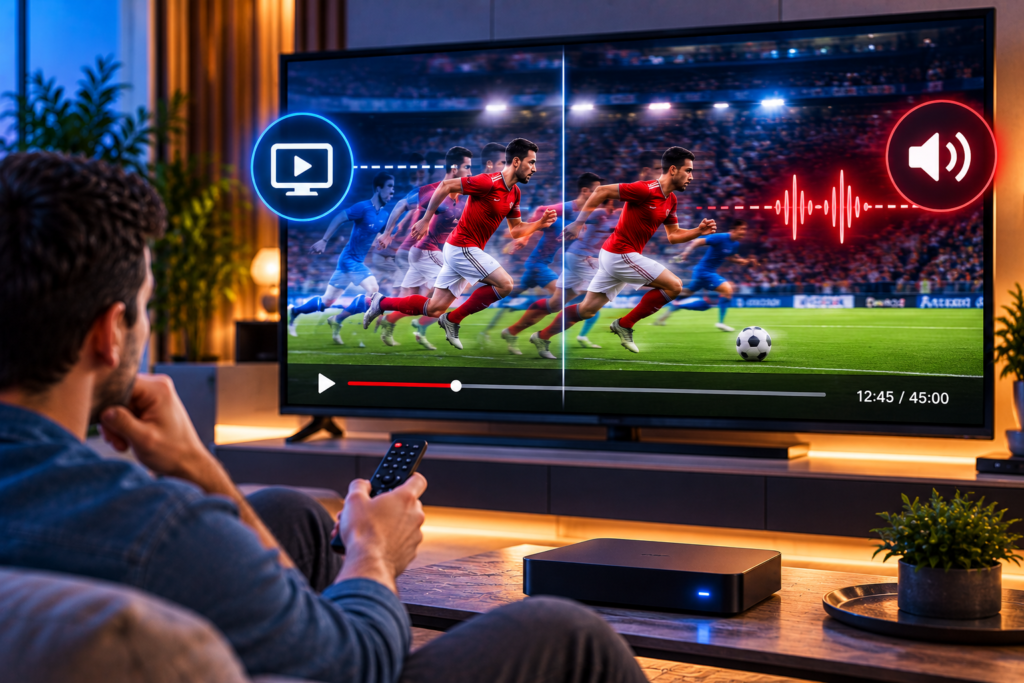
Few streaming problems are more distracting than hearing dialogue before or after a person’s lips move. When IPTV audio out of sync occurs, the sound and picture are being processed at slightly different times. The delay may be barely noticeable, or it can become several seconds long and make a channel difficult to watch.
The good news is that audio sync problems are often easy to diagnose. The cause may be your IPTV app, streaming device, TV, soundbar, audio format, network connection, or the source stream itself. Instead of changing random settings, the fastest approach is to work out where the delay begins and then apply the right fix.
What Does IPTV Audio Out of Sync Mean?
IPTV audio sync problems happen when the audio track and video track no longer play at the same moment.
You may notice one of three common symptoms:
- The sound plays before the picture.
- The picture appears before the sound.
- Audio starts correctly but gradually drifts away from the video.
A constant delay often points to audio processing, Bluetooth, a soundbar, or a player setting. A delay that becomes worse over time can indicate decoder problems, buffering, dropped frames, or an issue in the original channel feed.
Understanding that difference can save a lot of troubleshooting time.
Why Does IPTV Audio Go Out of Sync?
Several parts of an IPTV setup can create a delay between sound and picture.
IPTV App or Player Problems
Your IPTV player has to decode video and audio simultaneously. If the app encounters a temporary playback error, the two streams can lose synchronization.
This is particularly noticeable after changing channels repeatedly, leaving a stream running for a long period, or resuming playback after the device has been asleep.
Closing the channel and reopening it can force the player to synchronize the audio and video again.
Hardware and Software Decoding
Many IPTV applications use hardware acceleration to let the device’s processor decode video efficiently. In some cases, however, a hardware decoder may introduce timing problems with a particular stream.
Changing between hardware and software decoding can therefore fix persistent lip sync issues.
If you use TiviMate, it is also worth checking the player and playback configuration. Monster IPTV provides dedicated TiviMate installation instructions that can help you confirm the app has been configured correctly.
Internet Connection and Buffering
A poor internet connection does not always create audio delay directly, but unstable network performance can interrupt smooth playback.
Packet loss, WiFi interference, network congestion, and repeated buffering may cause video frames to be dropped or reloaded. Audio may continue playing normally while the video pipeline catches up, creating an apparent synchronization problem.
Restart your router and test the same channel using Ethernet if possible. If Ethernet solves the problem, WiFi stability rather than the IPTV stream may be responsible.
Audio Passthrough and Codec Compatibility
Modern IPTV streams can use different audio formats, including stereo, AAC, Dolby Digital, and other multichannel formats.
When audio passthrough is enabled, the streaming device may send the original audio signal directly to a television, AV receiver, or soundbar for decoding. That extra processing can sometimes create a small but noticeable delay.
Try disabling passthrough temporarily. You can also switch the device’s audio output to PCM or stereo and check whether the voices immediately line up with the picture.
If they do, the problem is probably somewhere in the external audio processing chain.
Soundbars, AV Receivers and Bluetooth
External audio equipment is another common source of lip sync delay.
A soundbar or AV receiver may process surround sound before playing it. Bluetooth headphones and speakers add wireless transmission latency as well. The result can be perfectly smooth video with audio arriving slightly late.
To test this, temporarily use the TV’s built in speakers.
If synchronization returns to normal, adjust the lip sync or audio delay controls on the soundbar or receiver. For Bluetooth devices, a wired connection can provide a useful comparison.
HDMI Connection or TV Processing
The television itself can delay the picture when features such as motion smoothing, noise reduction, image enhancement, or advanced picture processing are active.
Try switching to Game Mode or a low latency picture mode. You can also reconnect the HDMI cable or test another HDMI input.
Changing the cable is worth trying when you also experience audio dropouts, picture interruptions, or unstable HDMI handshakes.
How to Fix IPTV Audio Out of Sync Step by Step
Start with the easiest fixes before changing advanced settings.
1. Change the Channel and Return
Switch to another IPTV channel for several seconds and then return to the original stream.
This forces the app to reload the feed and may immediately restore synchronization.
2. Restart the IPTV App
Close the IPTV application completely rather than simply returning to the home screen.
Open it again and test the same channel.
Temporary decoder or memory problems often disappear after a clean restart.
3. Restart Your Streaming Device
Restart your Smart TV, Android TV box, Fire TV device, phone, tablet, or other IPTV hardware.
A reboot clears temporary processes and reloads the audio and video decoders.
4. Test Another Channel
Check several channels.
If only one channel has delayed audio while everything else is synchronized, the source stream is the likely cause.
If every channel has the same delay, focus on your device, television, IPTV app, soundbar, or audio settings.
This simple comparison is one of the fastest ways to narrow down the problem.
5. Test Another Device
Open the same IPTV channel on another compatible device.
For example, compare your Smart TV with a mobile phone or computer.
If the channel is synchronized on one device but not another, the IPTV source is probably fine. The problem is likely connected to the original device or its settings.
Monster IPTV users who need help configuring different players and devices can also consult the site’s IPTV setup instructions.
6. Adjust the Audio Sync Setting
Some IPTV players provide a manual audio offset control.
If the sound consistently arrives too early or too late, make small adjustments until dialogue matches the picture.
In TiviMate, for example, audio synchronization can be adjusted for an individual channel. Avoid applying the same correction to every channel unless the delay genuinely affects all of them.
Small adjustments are usually better than large changes.
7. Change the Decoder
Look inside your IPTV player’s playback settings for options such as hardware decoder, software decoder, hardware acceleration, or external player.
Switch to the alternative decoding method and reload the stream.
If the delay disappears, the original decoder was struggling with that stream or device combination.
8. Change Audio Output Settings
Open your device’s sound settings and test a simpler audio format.
If you currently use automatic surround sound, Dolby output, or passthrough, switch temporarily to PCM or stereo.
Then reopen the IPTV channel.
If the delay disappears, you can gradually restore your preferred settings until you identify the format causing the problem.
How to Tell If the IPTV Provider Is Causing the Problem
Not every synchronization issue can be fixed locally.
The source stream may be responsible when the same channel shows the same audio delay across several devices, different IPTV apps, and different network connections.
You can confirm this by checking:
- Whether other channels work normally.
- Whether the affected channel is delayed on multiple devices.
- Whether restarting or changing player settings makes no difference.
- Whether the delay remains roughly identical every time you open the channel.
Testing another source can also help separate a local playback problem from a feed related issue. Comparing stream behaviour with an established service such as Viking IPTV may help determine whether the fault follows the device or a particular source.
If the issue clearly follows one channel, report the channel name, device, app, approximate delay, and time the problem occurred to your provider.
Why Audio Gradually Drifts Out of Sync
A fixed delay and a growing delay are not always the same problem.
When synchronization becomes progressively worse, the player may be dropping video frames, struggling with timestamps, experiencing decoder instability, or recovering repeatedly from network interruptions.
In this situation, manually adjusting the audio offset may only hide the problem temporarily.
Restart the stream first. Then test another decoder, disable audio passthrough, check network stability, and compare the same channel on another device.
If the audio resets correctly after restarting but slowly drifts again, decoder or source timing problems deserve particular attention.
How to Prevent IPTV Lip Sync Problems
Keeping your IPTV environment simple and updated can prevent many recurring playback issues.
Update your IPTV application and device firmware when stable releases become available. Use Ethernet where practical, especially for high bitrate HD and 4K streams. Avoid unnecessary Bluetooth audio connections when latency matters. Keep enough free storage and memory available on your streaming device.
It also helps to avoid applying global audio delay settings to solve a problem affecting only one channel. A correction that fixes one stream can make every other channel appear out of sync.
Frequently Asked Questions
Why is IPTV audio ahead of the video?
Audio can play ahead of video when the device needs more time to decode or process the picture. Video enhancement settings, decoder problems, buffering, or weak hardware can contribute to the delay.
Why is IPTV sound behind the picture?
Audio may lag when a soundbar, Bluetooth device, AV receiver, surround sound decoder, or audio passthrough feature introduces additional processing time.
Can slow internet cause IPTV audio delay?
An unstable connection can contribute to synchronization problems when buffering, packet loss, or dropped frames interrupt normal playback. However, a consistent delay on every channel can also come from device or audio settings.
Can TiviMate fix audio sync?
TiviMate includes audio synchronization controls that allow users to adjust an affected stream. Manual offset is useful for a small consistent delay, although larger or constantly changing delays should be diagnosed at the source.
Should I contact my IPTV provider?
Contact your provider when the same channel remains out of sync on several devices and apps after local troubleshooting. That pattern suggests the channel feed or stream encoding may need attention.
Get Smooth Audio and Video Playback
Most IPTV audio sync problems can be solved by restarting the stream, testing another channel, checking the decoder, simplifying the audio output, and isolating external devices such as soundbars or Bluetooth speakers. If you want a stable IPTV experience with straightforward setup across compatible devices, explore Monster IPTV and choose the subscription option that fits how you watch TV.
