 Skip to main content
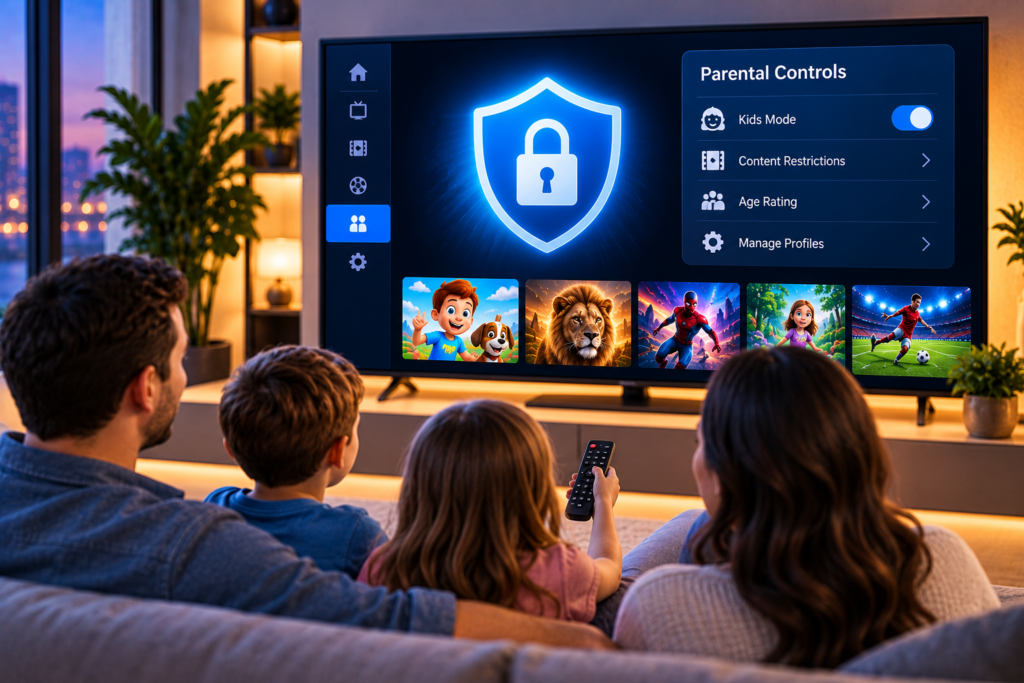
IPTV parental controls help families decide which channels, movies, series, and settings children can access. Modern IPTV services can include thousands of live channels and large video libraries, so relying on children to avoid unsuitable content is rarely enough. A properly configured PIN, channel lock, content filter, or restricted profile adds an important layer of control.
The exact options depend on your IPTV player, television, streaming device, and provider. Some applications let you protect individual channels, while others can lock entire categories or prevent users from changing settings. The safest approach is to use several controls together rather than depending on a single restriction.
What Are IPTV Parental Controls?
IPTV parental controls are settings designed to restrict access to selected content or application features. They normally use a PIN or password that must be entered before protected channels, categories, movies, or settings can be opened.
Common controls include channel locks, category restrictions, age ratings, profile restrictions, settings protection, viewing time limits, and hidden content.
For parents, the main advantage is consistency. Once the controls are configured, you do not have to supervise every channel change manually. Children can browse suitable content while restricted areas remain protected.
Why Parental Controls Matter on IPTV
IPTV libraries can be much larger than traditional television packages. Alongside family programming, sports, documentaries, and entertainment, a playlist may include channels or video categories intended for adults.
Content organization also varies between providers. A category name may clearly identify restricted material, while another playlist may group channels less precisely. This means parents should review the actual channel list rather than assuming every item has been classified correctly.
Parental controls can reduce accidental access, but they work best when combined with careful playlist management and household rules about viewing.
How to Set Up IPTV Parental Controls
Most IPTV applications follow a similar process even though menu names differ.
1. Open the Parental Control Settings
Open your IPTV application and go to Settings. Look for an option called Parental Control, Parental Lock, Security, Restricted Content, or a similar name.
If you use TiviMate, menu placement and available options can depend on the version installed. The TiviMate setup instructions can help you understand the basic application configuration before adjusting more advanced controls.
2. Create a Strong PIN
The next step is usually creating a PIN.
Avoid obvious combinations such as 0000, 1111, 1234, or a child’s birthday. Choose a code that children cannot easily guess and do not leave it written beside the television or remote control.
A PIN is only useful when it remains private. If a child learns the code, change it immediately.
3. Lock Individual Channels
If only a small number of channels require restriction, individual channel locking is often the simplest method.
Open the channel options, choose the channel you want to protect, and select Lock Channel, Block Channel, or the equivalent setting. The application should then request the PIN whenever someone tries to access it.
Test the channel afterward without entering the PIN first. This confirms that the restriction has actually been applied.
4. Block Entire Channel Categories
Blocking a complete category can save time when many channels require the same restriction.
For example, rather than locking twenty channels separately, you may be able to protect the entire group. In compatible IPTV applications, open the group options and select the blocking or parental control function.
This method is especially useful when playlists contain clearly separated adult or mature categories.

Hiding Content Is Not the Same as Locking It
One important detail is that hiding a category does not always prevent access to its channels.
Some IPTV players allow a group to disappear from the normal channel menu while its channels remain discoverable through search or another menu. Users in the TiviMate community specifically report this distinction, which is why combining visibility settings with PIN protection can provide stronger control.
If your player supports both features, hide unwanted categories and lock the channels or group itself. You can also protect the settings menu so another user cannot simply restore hidden content.
After making changes, search for one of the restricted channel names manually. If it still appears and opens without a PIN, additional restrictions are needed.
Protect the IPTV Settings Menu
Channel restrictions become much less useful if anyone can open Settings and disable them.
Many IPTV applications allow you to protect settings, playlist management, channel options, or group options with the parental PIN. Enable these restrictions where available.
This prevents children from changing visibility settings, unlocking groups, editing playlists, or removing restrictions without permission.
Families using several devices should repeat the process on each device. Controls applied to one television or IPTV application do not necessarily carry over automatically to another.
Use Age Ratings and Restricted Profiles When Available
Some IPTV systems support age based controls rather than requiring every channel to be selected manually.
You may be able to choose a permitted age level and require a PIN for content rated above it. More advanced services may also support separate profiles for adults and children.
A child profile can make everyday viewing easier because unsuitable content is filtered before the user begins browsing.
Do not assume the rating system is perfect. IPTV metadata comes from different sources, and some programmes may be missing an age classification. Manual review is still worthwhile.
Ask Your Provider About Removing Unwanted Categories
Application controls are not always the only option. Some providers may be able to remove specific channel groups from a subscription or playlist.
Removing material at playlist level can be useful because the unwanted channels are no longer presented to the player in the first place.
Before relying on this approach, confirm exactly what has been removed and refresh the playlist afterward. You can review the available IPTV channel information when organizing the types of content you want accessible on your household devices.
Set Viewing Limits Where Supported
Parental control is not only about mature content. Some families also want to manage overall screen time.
Certain IPTV devices and television operating systems offer time limits, scheduled access, bedtime restrictions, or child profiles with daily usage controls. These settings may be provided by the television or streaming device rather than the IPTV application itself.
Combining device controls with IPTV restrictions can provide broader protection. The IPTV application manages channel access, while the device manages when or how long it can be used.
Households comparing services may also see different approaches to device and content management from providers such as Viking IPTV. Regardless of provider, the most important factor for parental control is whether the player and device you actually use support the restrictions your household needs.
How to Test Your IPTV Parental Controls
Never assume a setting works simply because it has been enabled.
Exit the settings menu and use the IPTV application as a normal viewer would. Try opening a blocked channel. Search for a restricted channel by name. Open a hidden category if possible. Attempt to enter the settings menu and change channel options.
Every protected action should either remain unavailable or require the correct PIN.
It is also worth restarting the application and device before testing again. This confirms that your restrictions remain active after a fresh launch.
Common Parental Control Problems
A Locked Category Still Appears
Some applications display the category name even when access to its channels is restricted. Look for a separate visibility setting if you do not want the category name shown.
Hidden Channels Appear in Search
Hiding a category may only remove it from the normal menu. Lock the channels themselves and test the search function afterward.
Children Can Change the Settings
Enable PIN protection for settings, group options, playlist management, and channel options where supported.
The PIN No Longer Works
Confirm that you are entering the correct code. If it has been forgotten, follow the application’s official reset process. Depending on the device, resetting parental controls may require account access or application reconfiguration.
Restrictions Disappear After an Update
Software updates can occasionally change menus or settings. Review your parental controls after major application, television, or device updates and test them again.
Tips for Safer IPTV Viewing at Home
Use a PIN children cannot easily guess and change it if you believe it has been discovered.
Review new channels whenever your provider refreshes its playlist. A category that was safe when you first configured the service may later contain new content.
Keep your IPTV player and streaming device updated. Updates can fix security issues and improve the reliability of settings.
Use child profiles when available, and protect the main adult profile with a password or PIN.
Most importantly, combine technical restrictions with clear household rules. Parental controls reduce accidental access, but they are more effective when children also understand which content is appropriate for them.
Frequently Asked Questions
Can I Put a PIN on IPTV Channels?
Yes, many IPTV players allow individual channels or entire groups to be protected with a PIN. The exact option depends on the application being used.
Can I Hide Adult Channels on IPTV?
Many applications allow categories or channels to be hidden. However, hiding content may not fully block access through search, so PIN protection should also be enabled where possible.
Can Children Bypass IPTV Parental Controls?
Weak PINs, unprotected settings, or visibility-only restrictions can make controls easier to bypass. Protect both the content and the settings used to manage it.
Do Parental Controls Work on Every IPTV Player?
No. Available controls depend on the player, device, operating system, and IPTV provider. Some offer basic channel locks, while others include profiles, age restrictions, and additional filters.
Should I Check Parental Controls After an Update?
Yes. Test restrictions after major updates or playlist changes to make sure blocked channels, settings protection, and hidden categories still behave as expected.
Setting up IPTV parental controls takes only a few minutes, but careful testing makes the difference between simply hiding content and actually restricting access. Use a strong PIN, protect settings, review channel groups regularly, and test restrictions from a child’s point of view. If you want a flexible IPTV service for live TV, sports, movies, and series across your household devices, you can explore the options available from Monster IPTV.
