 Skip to main content
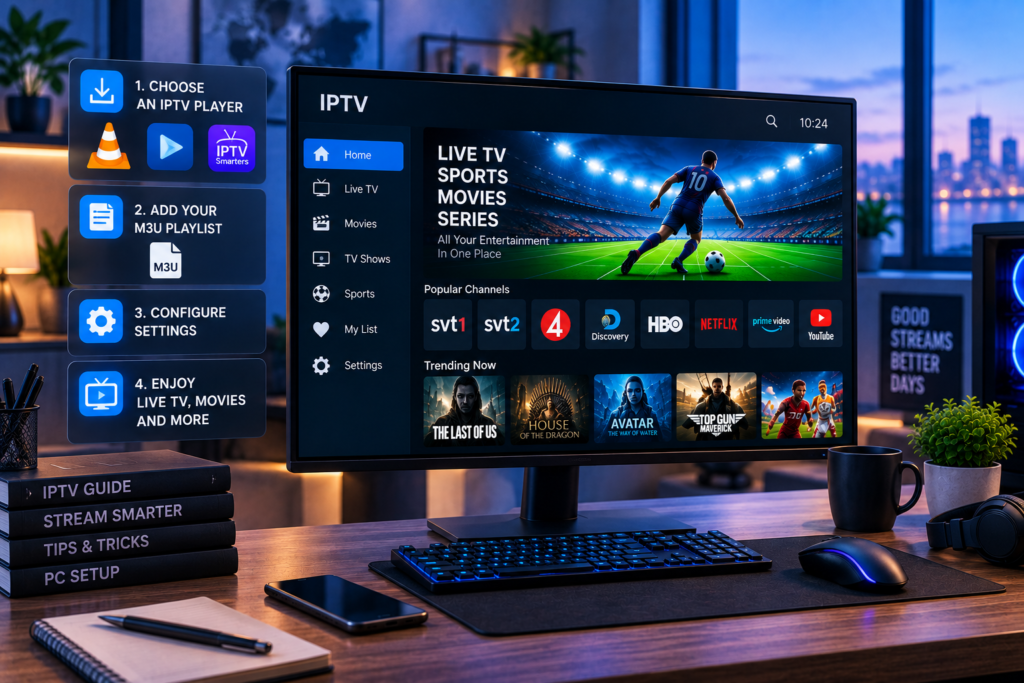
The best way to watch iptv on pc in 2026 is usually through a native Windows IPTV player that supports your provider’s login method, Electronic Program Guide, channel groups, movies, and series. Native software generally gives you a smoother desktop experience than running a television app through an Android emulator.
That said, there is no single method that suits everyone. VLC is excellent for simple M3U playback and troubleshooting. Dedicated Windows players offer richer TV guides and channel management. Android emulators can run certain mobile IPTV applications when a Windows version is unavailable.
The right choice depends on whether you prioritize easy setup, EPG information, live sports, multiple playlists, VOD, or the simplest possible playback.
Quick Answer: What Is the Best IPTV Method for PC?
For most Windows users, a dedicated native IPTV player with Xtream Codes or M3U support is the best option. It can provide live TV, EPG data, favorites, movies, series, search, and channel categories without adding the extra resource demands of an emulator.
VLC is best when you only need straightforward playlist playback or want to test whether a stream works.
An Android emulator is worth considering mainly when you specifically need an Android only IPTV app.
IPTV Methods for PC Compared
| Method | Best For | EPG | Setup | PC Performance |
|---|---|---|---|---|
| Native Windows IPTV player | Everyday viewing | Usually strong | Easy | Efficient |
| VLC | Basic playback and testing | Limited | Very easy | Efficient |
| IPTV Smarters style app | Live TV and VOD | Usually supported | Easy | Good |
| Android emulator | Android only apps | Depends on app | More complex | Heavier |
| Self hosted player | Advanced users | Often configurable | Advanced | Varies |
The feature mix matters more than the name of the application. Windows users discussing IPTV players frequently focus on EPG reliability because several apps can play channels while handling programme information very differently.
Method 1: Use a Native Windows IPTV Player
For most people, this is the strongest option.
A native player installs directly on Windows and does not require Android emulation. Modern IPTV applications can support live television, movies, series, EPG information, favorites, search, parental controls, and several playlist formats.
One example from the Microsoft Store competitor set is IPEXO IPTV Player. Its developer states that the Windows version supports local and remote M3U and M3U8 playlists, XC or XUI logins, live television, movies, series, favorites, EPG information, search, and playlist management.
Other Windows players discussed by users in 2026 include IPTV Player Zero, Desktop Telly, IPTVnator, Open TV, and various Smarters-style applications. Community feedback is useful for discovery, but your own playlist and EPG source ultimately determine which player works best for you.
Why Native Windows Software Usually Wins
Native applications normally require fewer system resources than an Android emulator.
They are also designed around a keyboard, mouse, and desktop display. Features such as window resizing, picture in picture, multiple monitors, recording, search, and multitasking can therefore feel more natural on a PC.
For a computer used regularly for IPTV, this is where I would start.
Method 2: Use VLC for Simple IPTV Playback
VLC is one of the simplest ways to play compatible IPTV streams on a Windows PC.
If your authorized IPTV service provides an M3U playlist, you can open the playlist or network URL through VLC and begin streaming. It is especially useful when you want to test whether a particular channel works without involving a complex IPTV interface.
VLC is also lightweight compared with many feature-rich IPTV applications.
Its limitation is organization. It does not provide the same polished television guide experience that dedicated IPTV software can offer. Managing a large library of live channels, films, and series can therefore feel basic.
Use VLC when simplicity matters more than advanced EPG and library features.
Method 3: Use Xtream Codes With a Windows Player
Xtream Codes is one of the easiest account methods for users who want an organized IPTV experience.
Instead of importing one long playlist manually, you normally enter a server address, username, and password supplied by your authorized IPTV provider.
A compatible app can then organize available content into sections such as Live TV, Movies, Series, and channel groups.
This method can also simplify EPG loading when guide information is supplied through the same service.
If you are setting up IPTV for the first time, the IPTV installation instructions explain the general setup process for compatible applications and devices.

Method 4: Use an M3U or M3U8 Playlist
M3U remains one of the most widely supported ways to load IPTV channels.
An M3U playlist contains media locations and related information that a compatible player can read. You can usually add it as a URL or, in some applications, as a local file.
The benefit is flexibility. The same playlist format can work with many different players.
The disadvantage is that EPG configuration may be separate. Some M3U sources include enough information for automatic guide matching, while others require an XMLTV EPG source.
If your channels play but the guide remains blank, the video connection may be perfectly fine. The EPG configuration could be the actual problem.
Method 5: Run an Android IPTV App Through an Emulator
Some PC users want to run the same IPTV application they use on an Android TV box.
BlueStacks, MuMu Player, LDPlayer, and similar software can create an Android environment inside Windows. This can make certain Android IPTV apps usable on a PC.
However, emulation should normally be a second choice rather than the default.
It uses additional memory and processor resources. Keyboard and mouse controls may also feel less natural because the app was designed for Android.
The Reddit competitor discussion shows mixed experiences with TiviMate through emulation. Some users report success with particular emulator configurations, while others prefer native Windows alternatives because setup and controls are simpler.
Microsoft’s former Windows Subsystem for Android is also no longer a sensible foundation for a new IPTV setup. Microsoft support for WSA ended in March 2025.
Why EPG Support Matters So Much on PC
EPG means Electronic Program Guide. It is the schedule that tells you what is currently showing and what comes next.
For a playlist with hundreds of channels, this can transform the experience.
A basic player may successfully load every channel but still provide poor programme information. A better IPTV player can associate channels with guide data and provide a familiar grid similar to traditional television.
When comparing Windows apps, test how quickly the EPG updates, whether programme times are correct, and whether channel names match the right guide entries.
Do not assume every player handles the same EPG source equally well.
Best PC Method for Watching Live Sports
Sports viewers should prioritize stability, channel switching, EPG accuracy, and video decoding.
Football, hockey, motorsport, boxing, and other live events can place greater demands on a streaming source during popular events. Your player should be able to handle the supplied stream smoothly without making navigation cumbersome.
Picture quality also depends on more than resolution.
A stable FHD stream can look better than an inconsistent 4K stream. Bitrate, frame rate, compression, server performance, and your internet connection all affect the final picture.
Swedish viewers can review the available IPTV channel selection for Sweden before choosing a player based only on technical features. The channels you actually watch matter more than an impressive application interface.
How to Reduce IPTV Buffering on a PC
Start by testing several channels. If only one stream has problems, the issue may be with that individual source rather than your computer.
If everything buffers, test your internet connection and local network. Ethernet can help determine whether WiFi interference is responsible.
Close large downloads, cloud synchronization, game updates, and other high bandwidth activities during testing.
Hardware acceleration can also improve playback on some systems because video decoding is moved to supported graphics hardware instead of relying entirely on the CPU.
Do not change ten settings at once. Test one variable, watch the result, and then move to the next.
Native Player Versus Emulator: Which Should You Choose?
A native Windows player should normally be your first choice.
It uses PC controls naturally, requires fewer software layers, and is often easier to troubleshoot. An emulator makes sense when an Android-only application offers a feature you specifically want and no Windows alternative satisfies that need.
If your priority is a traditional TV guide, investigate native applications with strong EPG support first.
If you only need occasional playback, VLC may already be enough.
Does the IPTV Provider Matter More Than the Player?
In many cases, yes.
A player can improve navigation and decoding, but it cannot turn an unreliable source into a reliable one. Channel availability, server performance, source quality, EPG information, and much of the VOD library come from the service rather than the playback app.
People comparing Scandinavian options may also encounter IPTV Sverige. Use the same PC, player, internet connection, and viewing period when comparing services so that differences in performance are easier to identify.
A useful player comparison and a useful provider comparison are two separate tasks.
Security Tips for IPTV on Windows
Treat IPTV credentials like any other account information.
Do not share screenshots that expose usernames, passwords, Xtream Codes server details, or private M3U URLs. Download Windows players from their official developer or recognized app store whenever possible.
Be cautious with unknown executable files shared in forums or direct messages.
The IPTV player itself also does not determine whether content is authorized. IPTV is a delivery technology. Users should verify that their content source has the appropriate distribution rights.
Frequently Asked Questions
What Is the Best Way to Watch IPTV on PC?
For most users, a native Windows IPTV player with M3U or Xtream Codes support provides the best balance of EPG functionality, channel organization, performance, and easy setup.
Can VLC Play IPTV on Windows?
Yes. VLC can play compatible M3U playlists and network streams. It is particularly useful for simple viewing and troubleshooting.
Is Xtream Codes Better Than M3U?
Neither is universally better. Xtream Codes can make content categories and account information easier to organize, while M3U offers wide compatibility across different players.
Can I Use TiviMate on a PC?
TiviMate is designed primarily for Android-based television devices. Some users run it through Android emulators on Windows, but a native PC player is generally simpler.
Why Does My IPTV EPG Not Load on Windows?
Possible reasons include an incorrect EPG source, channel identifiers that do not match, a player compatibility issue, or an outdated guide. Test the same source in another compatible application when troubleshooting.
Final Verdict: What Is the Best PC Setup in 2026?
For most users, the best PC setup in 2026 is a native Windows IPTV player combined with Xtream Codes or M3U access and a properly configured EPG. VLC remains excellent for quick playback and troubleshooting, while Android emulation is better reserved for users who specifically need an Android application. If you want a service focused on Swedish television, sports, films, series, HD, FHD, and 4K viewing across PC and other devices, visit Monster IPTV and choose the setup that fits how you watch.
