 Skip to main content
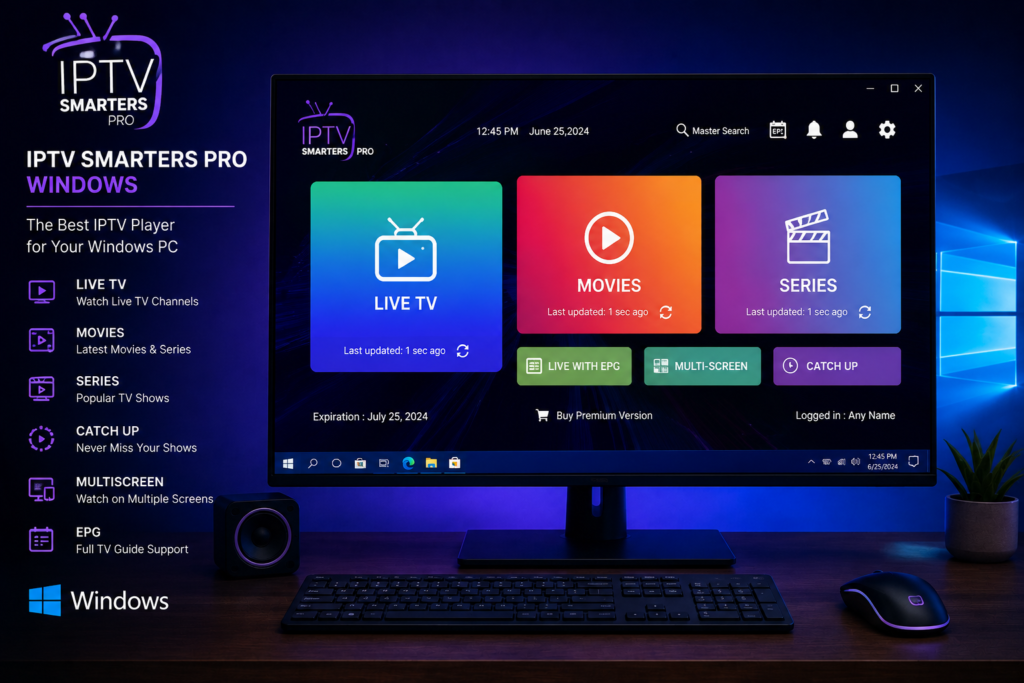
Setting up iptv smarters pro windows access gives you a convenient way to watch IPTV directly on a desktop computer or laptop. For viewers in Sweden, a Windows PC can be particularly useful when you want live television, sports, movies, or series on a larger screen without depending on a Smart TV.
IPTV Smarters Pro works as a media player. It does not automatically provide television channels or subscriptions. You need valid IPTV credentials from your service provider before you can load live TV, video on demand, and programme information. Once those details are ready, installation and setup are fairly straightforward.
This guide walks through the process from downloading the player to configuring your account and fixing common Windows playback problems.
What Is IPTV Smarters Pro for Windows?
IPTV Smarters Pro is an IPTV player designed to organize content supplied through a compatible IPTV service. Windows users can use it to access live channels, movies, television series, programme guides, favourites, and other features supported by their subscription.
The important distinction is that the application and the IPTV service are separate. The player provides the interface, while your provider supplies the actual streaming credentials and content access.
For someone using IPTV in Sweden, this setup can turn a Windows 10 or Windows 11 computer into another viewing device alongside a television, smartphone, or tablet.
What You Need Before Installation
Preparing a few things first makes the installation process much easier.
You will need a Windows PC with a reliable internet connection, IPTV Smarters Pro or another compatible Smarters player, and active login information from your IPTV provider.
Your provider may give you one of two common login formats.
Xtream Codes Login
Xtream Codes normally requires three details:
Username
Password
Server or portal URL
This is often the simplest method because the application can organize live channels, movies, series, and programme information using one account.
M3U Playlist
An M3U playlist is usually provided as a URL. You paste the complete address into a compatible player, which then retrieves the available streams.
Some services may also provide a separate EPG URL for television programme information.
Keep all account details private. IPTV login credentials should be treated like passwords because another person may be able to use your account if they obtain them.

How to Install IPTV Smarters Pro on Windows
Step 1: Choose a Trusted Download Source
Start by obtaining the Windows application from a source you trust. Avoid unknown download pages that imitate popular IPTV applications or bundle additional software with installers.
When using the Microsoft Store, check the application name, publisher details, permissions, ratings, and description before installing. Several applications can use similar names, so do not assume every result containing the word Smarters is the same product.
The same principle applies when downloading a desktop installer. Verify the source before opening an executable file.
Step 2: Download and Install the Application
Download the Windows version and open the installer.
Windows may ask whether you want to allow the program to make changes to your computer. Confirm only after you have verified where the file came from.
Follow the installation prompts until setup is complete. You should then be able to launch the IPTV player through the Windows Start menu or desktop shortcut.
If you are new to IPTV applications, Monster IPTV also provides broader IPTV installation instructions covering common setup concepts and devices.
Step 3: Open IPTV Smarters Pro
Launch the application after installation.
During the first setup, you may see a screen asking you to add a user or select a login method. The exact wording can vary between versions, but the main goal is the same: connect the player with the subscription credentials supplied by your IPTV provider.
How to Set Up IPTV Smarters Pro With Xtream Codes
For many users, Xtream Codes is the easiest login option.
Step 1: Select the Xtream Codes Option
Choose the option for logging in with Xtream Codes or Xtream Codes API.
You should see fields for an account name, username, password, and server URL.
Step 2: Enter Your IPTV Details
Create any recognizable name for the account. For example, you could use Home IPTV or Windows TV.
Then enter your username and password exactly as provided.
Finally, enter the server address. Be careful with characters, slashes, numbers, and the beginning of the URL. An incorrect address can prevent the application from connecting even when your username and password are correct.
Step 3: Load the Account
Select the option to add the user or sign in.
The application should begin loading available categories. Depending on your subscription, these may include live TV, sports, films, series, favourites, and programme information.
Large IPTV libraries can take longer to populate, particularly during the first login.
How to Use an M3U Playlist on Windows
If your IPTV provider gives you an M3U URL instead of Xtream Codes credentials, choose the playlist option in the application.
Give the playlist a recognizable name, then paste the complete M3U address into the appropriate field.
Check the URL carefully before continuing. Even one missing character can stop the playlist from loading.
If your provider supplies a separate EPG address, add it through the programme guide settings when supported by your version of the player.
How to Navigate IPTV Smarters Pro
After your account loads, the home screen normally separates different types of content.
Live TV
The live television section contains available channels arranged by groups or categories. Depending on your subscription, you may find Swedish television, Nordic channels, international networks, news, entertainment, and sports.
Movies and Series
Video on demand sections organize films and television programmes separately from live channels. Availability depends entirely on the IPTV subscription connected to the player.
EPG
The electronic programme guide displays current and upcoming programmes where guide data is available.
A properly configured EPG makes Windows IPTV viewing easier because you can browse schedules instead of opening channels individually.
Favourites
Add regularly watched channels to your favourites list. This is particularly helpful when an IPTV package contains a large number of channels.
How to Improve Streaming Quality on a Windows PC
Installing the application correctly is only part of the process. Your computer, network, and IPTV source also affect playback quality.
Use a Stable Internet Connection
A wired Ethernet connection is usually preferable when your computer is close to the router. It removes many of the signal problems associated with WiFi.
If Ethernet is not practical, use a strong WiFi connection and avoid placing the computer far from the router.
Close Heavy Background Applications
Large downloads, cloud backups, online games, video calls, and software updates can consume bandwidth.
If IPTV starts buffering, close unnecessary applications and test the stream again.
Match Quality to Your Connection
HD, FHD, and 4K streams require different amounts of bandwidth. Higher resolution is useful only when your connection and computer can maintain it consistently.
A stable FHD stream is usually more enjoyable than a 4K stream that freezes every few minutes.
Consider Network Privacy
Some users prefer additional privacy when streaming or connecting through public networks. If this is relevant to your setup, read the Monster IPTV guide to using a VPN with IPTV and understand how a VPN can affect connection routing and speed.
Common IPTV Smarters Pro Windows Problems
Login Details Are Rejected
First, verify the username, password, and server address.
Do not type the information from memory. Copy the credentials supplied by your provider and check for accidental spaces.
If the same account works on another device but fails on Windows, confirm that you are using the correct login method and application.
Channels Do Not Load
Refresh your playlist or restart the application.
If several channels fail, test a different category. This can help determine whether the problem affects one stream or the entire account.
You can also compare the general service experience with another IPTV provider such as Viking IPTV when evaluating features and compatibility, but always assess providers based on your own device and viewing requirements.
IPTV Keeps Buffering
Buffering can come from several places.
Your internet connection may be unstable, another device may be using significant bandwidth, WiFi reception may be weak, the computer may be overloaded, or the IPTV stream itself may be experiencing high demand.
Restart the router, close unnecessary programs, test Ethernet if available, and try more than one channel before deciding where the problem originates.
No EPG Information Appears
Programme guide information depends on your IPTV source and configuration.
Refresh the EPG inside the application and confirm that the provider supplies programme data. If you use an M3U playlist, check whether a separate EPG address is required.
The App Opens but Shows No Channels
An empty player usually means that content credentials have not been added correctly or that the playlist could not load.
Remember that IPTV Smarters Pro is a player rather than a channel subscription. Installing the application alone does not add television content.
Is IPTV Smarters Pro Good for Windows Users?
IPTV Smarters Pro can be a convenient choice for Windows users who want a dedicated interface instead of opening individual streams in a browser.
The main advantages are organized content categories, support for common IPTV login methods, easy access to live television and video on demand, and the ability to use a laptop or desktop as an additional viewing screen.
It can be particularly useful for people who watch sports at a desk, travel with a Windows laptop, or want IPTV available on both a computer and television.
The quality of the viewing experience, however, depends heavily on the subscription connected to the app. A good player cannot compensate for unstable servers or poor quality streams.
Frequently Asked Questions
Can IPTV Smarters Pro Work on Windows 10 and Windows 11?
Windows versions of Smarters based IPTV players are available for PC use. Check the current application requirements before installation because compatibility and available versions can change.
Does IPTV Smarters Pro Include Free Channels?
No. The player itself does not automatically provide an IPTV channel package. You need valid account details or a playlist from an IPTV service.
Can I Use Xtream Codes on Windows?
Yes. Compatible IPTV Smarters applications can use Xtream Codes credentials consisting of a username, password, and server URL.
Can I Add an M3U Playlist?
Yes. Where supported, you can add an M3U URL supplied by your IPTV provider and load available streams into the player.
Why Is IPTV Smarters Pro Buffering on My PC?
Possible causes include weak WiFi, insufficient bandwidth, background downloads, device performance, network congestion, or issues with the stream itself. Testing another channel and a wired connection can help narrow down the problem.
Can I Watch 4K IPTV on Windows?
A Windows PC can play 4K IPTV when the computer, display, internet connection, player, and source stream all support the required quality. Stable bandwidth is particularly important for higher resolution playback.
For Swedish viewers who want to use IPTV Smarters Pro on a Windows computer with access to live television, sports, movies, series, HD, FHD, and 4K content, visit Monster IPTV to explore available IPTV subscription options and choose a package suited to your devices and viewing habits.
